
Create Personalized Alerts for Users
Learn how to create metric-based alerts for your users and user groups.
Access requirements
Custom profile with these capabilities: Model (Write, Detailed)
Permission with these capabilities: Set and View Alerts
Reach out to your administrator for access.
Overview
Use personalized alerts to define a metric threshold that, if exceeded, notifies you of the metric value. For example, if you want to be notified any time your Resignation Rate exceeds 5%, set up a personalized alert. Users can set up their own personalized alerts and administrators can create alerts for users and user groups. Alerts respect a user's data security. Users within the same user group may see different data due to their assigned permissions.
Alerts evaluate every time a new data version is available. If the metric threshold is exceeded, the alert triggers. When triggered, the alert shows up in a user's Home room and is sent to the user in an email digest. Each user can configure the frequency of their email digest, such as daily, weekly, or none. If weekly, users set the day of week to send the email. Visier starts processing email digests at 12:00 AM Coordinated Universal Time (UTC). Due to processing volume, it may take some time for users to receive the email.
Users can create a maximum of 100 personalized alerts. There is no maximum for administrator-created personalized alerts.
For more information about users creating their own alerts, see Personalized Alerts.
Create an alert
To create an alert to assign to your user groups, open a project and navigate to Model > Alerts.
Note: This feature is also available through Visier's public APIs. For more information, see Personalized Alerts API.
Select a metric
- Click Create Alert > Select a metric.
- In the list, search for and select the metric to be notified about.
Activation rule
- Optional: Choose whether to trigger the alert when compared to a time period, another metric, or a group.
- Compare to time period: A time period to compare the metric against. For example, if your metric is Resignation Rate and you compare against the previous period, you can set up an alert to notify you if your resignation rate is 5% higher than the previous period.
- Compare to metric: Another metric to compare the alert metric against. For example, if your alert metric is Resignation Rate and you compare against Resignation Rate - My Visier Benchmark™ - Trend (Average), you can set up an alert to notify you when your resignation rate is 10% higher than the industry average.
- Compare to group: A group to compare the metric against. For example, if your metric is Resignation Rate and you compare against High Performers, you can set up an alert to notify you if your resignation rate among high performers is 5% higher than the overall population.
- In Time period for the, set the time period in which to evaluate the alert. If you don't set a time period, the default is the latest partial month. For example, select Latest complete 1 Month to evaluate the alert for the latest complete month.
- In Alert if metric value is, select the operator for the alert, such as greater than, equal to, or less than and then type the value for the alert, such as 5.
- Optional: In Filter, select a filter to apply to the metric. For example, select New Hire to filter the alert by employees hired in the last 6 months.
- In Activate based on, set whether to trigger the alert on the overall metric value or on a specific group's metric value. The default is overall metric value. For example, select Any value in Organization Hierarchy to trigger the alert if any department in your organization exceeds the alert conditions, such as a Resignation Rate greater than 5%. This helps find outliers hiding in the metric, such as if overall resignation looks normal but one location has a large spike in resignations. Otherwise, the alert triggers if your company's overall Resignation Rate is greater than 5%.
- In Alert name, type a name for the alert, such as Resignation Rate > 5%.
Recipients (Optional)
- In Assign to, select the users and user groups to assign the alert to. Users will receive email digests and Home room notifications after the alert triggers. Alerts have a maximum recipient limit of 5000.
Add related content (Optional)
Related content guides users to take action based on a triggered alert. We recommend linking analyses that are meaningful to the alert and adding notes that explain why the alert is important and its implications if triggered.
- Link to analyses that are relevant to the alert. You can search analyses by name or using the analysis URL from the browser. Do not use the shareable link from the Share button
 . The analysis is visible in alert emails and Home room notifications after the alert triggers. Share the analyses with alert recipients so they can view the linked analyses.
 - Add notes to give context to the alert. The note is visible in alert emails and Home room notifications after the alert triggers.
When finished creating the alert, click Save.
Create an alert from a visualization
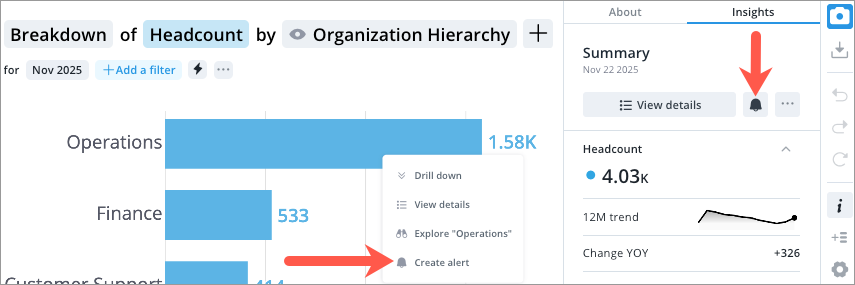
Alternatively, you can create an alert while viewing a Breakdown, Trend, or Trend Breakdown visualization. Do one of the following:
- Right-click a data point in the visualization, then click Create alert.
- Select a data point in the visualization, then click the Create alert button
 in the Info panel.
The visualization's metric, group by, filter, and value are selected in the creation dialog. You can then follow the steps above to finish creating the alert.
Delete an alert
Deleting an alert removes it from all assigned user groups and deletes it permanently. Alternatively, users can disable alerts they no longer want to see in the Home room. For more information, see Manage alerts.
- In a project, on the navigation bar, click Model > Alerts.
- Hover over the alert to delete.
- In the Actions column, click the Delete button
 .
. - To confirm the deletion, click Delete.