
Label an Analysis
Organize analyses into categories with labels.
Labels provide a simple, personalized way to organize your analyses. Create labels that are visible only to you, then assign them to your analyses to quickly sort and find what you need.
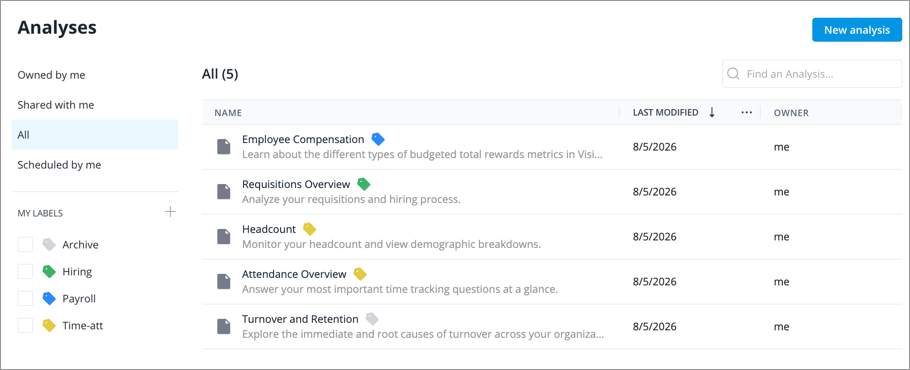
Create and manage labels in the Analyses room. To get started, click Analyses on the navigation bar.
Note:
-
This feature is also available through Visier's public APIs. For more information, see Labels API.
-
Label
- You can create a maximum of 100 labels.
- Label names can contain a maximum of 150 characters.
- You can have a maximum of 250 label assignments in total, shared across all labels.
Create a new label
- Do one of the following:
Option
Do this
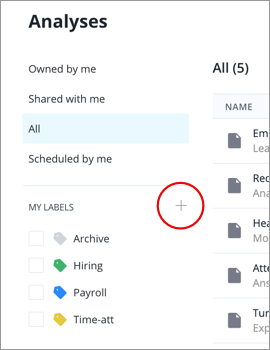
In the My Labels list
Click the Create button
 .
.
Quick Actions menu
Hover over an analysis to reveal the Quick Actions menu, click the Label As button
 , then click Create new.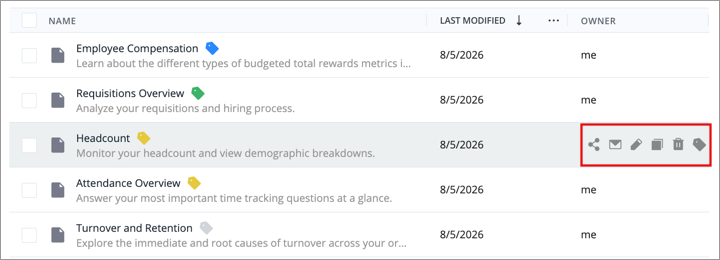
-
In the New label dialog, enter a name and click Create.
Label an analysis
-
Hover over an analysis to reveal the Quick Actions menu, click the Label As button
. - Select the labels you want to assign.
Change the label name and color
-
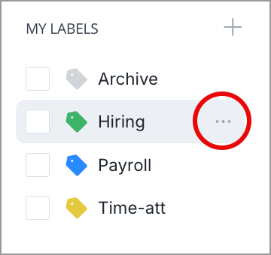
In the My Labels list, hover over a label, and click the More button
 .
.
Delete a label
-
In the My Labels list, hover over a label, and click the More button
.
- Click Remove.
- Click Delete to confirm.
Result: The label is deleted and removed from all analyses