

Optimize an Analysis for Vee
Select the source content that Vee uses to explain an analysis.
Access requirements
Permission with these capabilities: Enable AI Explanation, Vee 2.0, and Vee Boards.
Reach out to your administrator for access.
Prerequisites: Your organization must opt in to AI features. In the global workspace, click Settings > AI Features.
As an analysis author, you have full control over how Vee interprets your data. By selecting the specific visuals and text it uses, you can ensure the resulting explanation is aligned with your intended narrative. As you build your analysis, preview the explanations to confirm the insights are clear, accurate, and contextually relevant.
-
In the Analysis Editor, click the AI Explanations button .
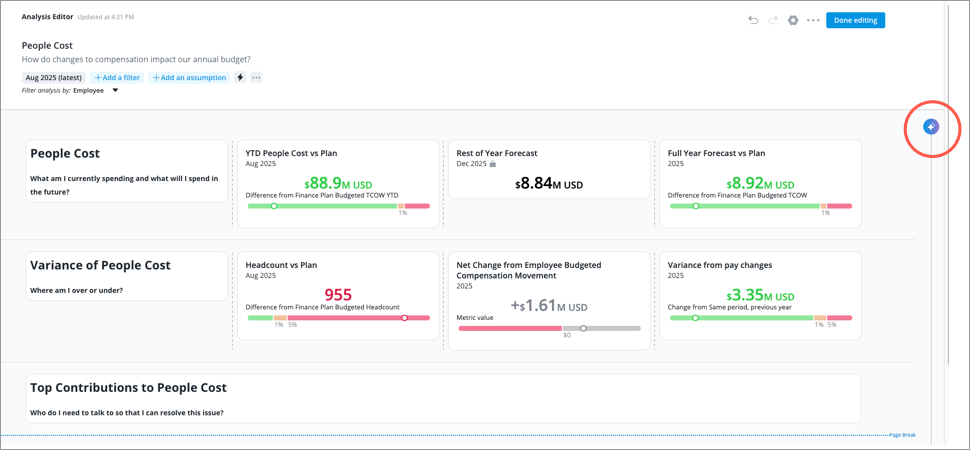
- In the AI Explanations panel, under Included content, click Manual > Edit selection.
- Select the visuals and text that Vee uses to explain an analysis, and then click Apply in the upper-right corner. You can select a maximum of 25 visuals.
- To preview the AI explanation generated from your selected content, click Preview in the AI Explanations panel. When finished, click the Back button to close the preview.
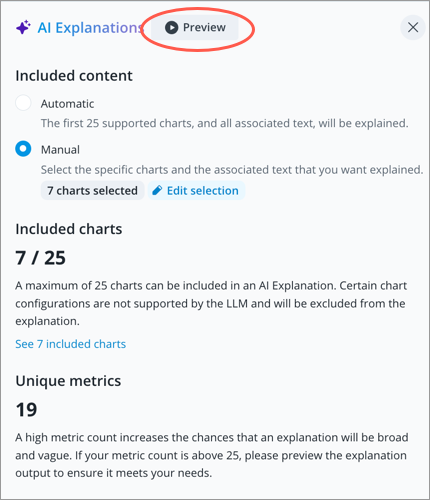
Tip: Check the AI Explanations panel to assess the quality of generated explanations:
- Click See included charts to review the data used to generate the explanations. This ensures the explanations use relevant information and align with your intended narrative.
Review the number of unique metrics included. The more metrics used to generate the explanation, the more likely it is to be broad or vague.
- When finished, click Done editing.
Best practices
When creating your analysis, follow these best practices to get the best performance and quality AI explanations:
- Structure your content in a clear, organized way so Vee can easily process and understand the data and narrative.
- Center the content around a single, clearly defined topic such as employee retention.
- Control your narrative by selecting the analysis title, visuals, and text to include in the AI explanation, then previewing the generated results. Keep in mind, AI is non-deterministic, meaning the same input may result in slightly different explanations each time you generate one.
- Limit the number of unique metrics in your visualizations. Including too many can make the explanation overly broad or vague, reducing its clarity and usefulness.
- Analyze Usage metrics to understand how users perceive and interact with the AI explanations. Use the Actions metric and filter by Action Name: AnalysisExplanation.
Supported visualizations
Vee supports AI explanations for all visual types except Detailed Table, Detailed View, Pipeline Diversity, Text, and Comparison.