
Configure Pay Letters
Learn how to configure pay letters.
Overview
You can configure a pay letter template by uploading your own from scratch or using the default template. The default template comes with both standard and dynamic text, making it a great place to start. Simply download the template and customize it to fit your needs. Once you have a base letter, you can use segmentation to create additional versions for different employee groups, allowing you to tailor your message to specific audiences. When you upload a template, the application only modifies the variables and configuration blocks; the rest of your content and formatting remain unchanged.
Configure pay letters
Create your pay letter template using Microsoft Word, Google Docs, or OpenOffice. You can use the following elements to configure pay letters:
-
Conditional blocks: Use conditional blocks to make sure that the right sections of your pay letter templates appear for the right employees. For example, using
{{?IsEmployeePromoted}}will show that content only to promoted employees.Example:
{{?IsEmployeePromoted}}Congratulations you’ve been promoted to the role of
{{EmployeePromotedRole}} at the{{EmployeePromotedCareerLevel}}level.{{/IsEmployeePromoted}} -
Dynamic variables: Use dynamic variables to include data from your cycle. For example, using
{{EmployeeTotalAdjustedCompensation}}will show an employee's total adjusted base pay.Example:
Starting from
{{CycleEffectiveDate}}, you will receive a salary increase of{{EmployeePayAdjustmentAmount}}. This increase reflects our recognition of your valuable skills and the significant impact you have made on our team. We believe this adjustment is well-deserved and will further motivate you to continue delivering exceptional results.
Combine blocks and variables to show the right data to the right employees using a single template. Smart Compensation includes a list of dynamic variables and conditional blocks you can pull from.
Upload a pay letter
- Click the More button
 .
. - Click Upload pay letter.
- Drag and drop or choose a file to upload.
Note: Max file size is 25MB. Supported file type is DOCX.
-
Click Save.
Upload a pay letter by segmentation
By default, pay letter templates are segmented by Location. If your organization needs to segment pay letters by more granular criteria, such as hourly vs. salaried employees across different countries, contact your Customer/Partner Success Manager.
- Click Configure segmentation.
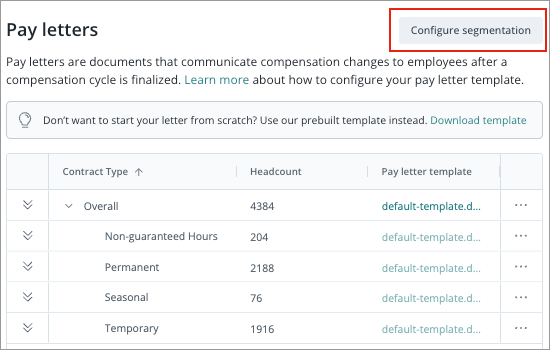
- Select the dimensions you want to segment by.
- Click Recreate segmentation.
- In the table, click the Drill down button
 to navigate the dimension hierarchies, then click the More actions button
  > Upload pay letter.