
Review Design Principles
Learn how to review design principles and create custom checks to validate your scenarios.
Access requirements
Permission with these capabilities: Organization Design
Reach out to your administrator for access.
Overview
An administrator can Create a Design Principle to set up organizational rules that help you design your scenarios. If your administrator has set up design principles, you will see any issues within your scenario that violate those principles in the Design principles panel  . Use the toggles next to the issues to highlight exactly where the problems are, making it easy to identify and fix issues at a glance.
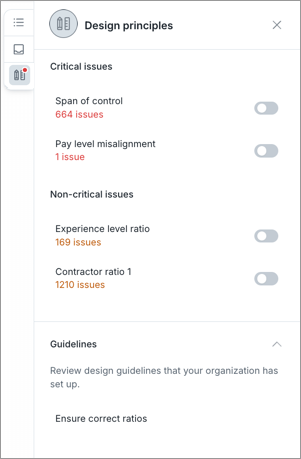
To review a design principle issue:
- Turn on the toggle next to the design principle to highlight exactly where the problems are.
-
Hover over the affected node to see more details on the issue.
Tip: Look for red and orange nodes for issues.
-
A red dot indicates a critical issue within the branch.
-
A orange dot indicates a non-critical issue within the branch.
-
-
Click on the node dropdown to locate the nodes being affected by the issue.
-
In the Design principles panel, hover over the design principle and click the View principle's details button
 to view the principle details.
 -
In the Who's affected list, hover over a position and click the View in org chart button
 to jump to that position in the canvas.
Create a custom check
Custom checks help you validate your scenario without affecting other users.
-
In the Design principles panel, click on Add custom checks.
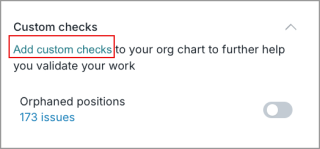
-
In the Select category dialog, select a custom check.
- Click Next.
- In the Custom check dialog, fill in the details such as name and rule.
- Click Add.
- Turn on the toggle next to the custom check to highlight exactly where the problems are.
-
Hover over the affected node to see more details on the issue.
Tip: Look for blue nodes for custom check issues. A blue dot indicates a custom check issue within the branch.
- Click on the node dropdown to locate the nodes being affected by the issue.
- In the Design principles panel, hover over your custom check and click on the View custom check's details button to view the custom check details.
- In the Who's affected list, hover over a position and click the View in org chart button to jump to that position in the canvas.