
Generate a Metric Breakdown
Learn how to generate metric breakdowns to explore the impact of organizational changes in detail.
Access requirements
Permission with these capabilities: Organization Design
Reach out to your administrator for access.
Overview
Use metric breakdowns to explore the impact of your changes in greater detail. You can group by position or employee attributes. Use metric breakdowns to view key percentage changes you've made in the canvas. A metric breakdown can help ensure you don't remove high-performing or critical employees.
Grouping by employee attributes segments the data by individual people, not their positions. Because vacant positions don't contain employee data, they are grouped into a separate category.
Generate a metric breakdown
-
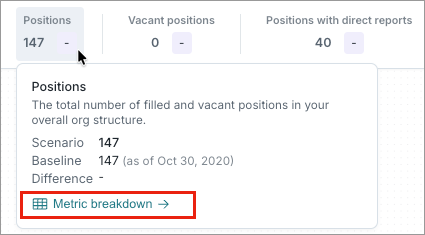
In the Metric summary bar or the Show details panel, hover over a key metric and click Metric breakdown.
- In the Metric breakdown dialog, configure the following:
- Metric: Select the metric you want to analyze. For example, Total Cost of Workforce.
- Grouping: Select a primary grouping. For example, Job Name.
- Optional: Sub-grouping: Select a secondary grouping. For example, Location.
- Click Generate.
Share a metric breakdown
- Click the Export options button
 and select the file format.
 -
Click Export.
Result: The selected file type is downloaded.