
Generate a Data Export Link
Copy the Data Export link and share it with others to fetch data from Visier.
Access requirements
Permission with these capabilities: Author Data Exports
Reach out to your administrator for access.
Prerequisites: To copy a Data Export link, the Data Export must be Active.
-
On the navigation bar, click Data Exports
 .
. - In the Data Exports list, hover over the Data Export you want to generate a link for, and click the Copy link button
 in the Quick Actions menu.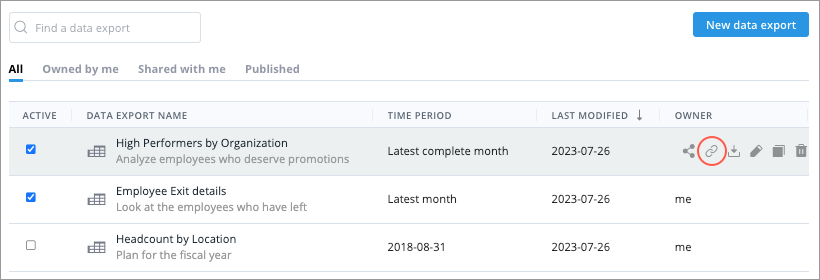
You can also access this option when editing the Data Export by clicking the More Actions button
 .
. -
Copy the appended Data Export link to your third-party application or share it with other users. For more information on what a Data Export link should look like, see Data Export link.
Note: For a Data Export link to work, the Data Export must be Active. You can revoke API access to a Data Export by removing its Active status.
Data Export link
API key
For a Data Export to work, the link must contain your organization's API key. Contact your administrator if the API key is missing from the link. For instructions on how to generate an API key as an administrator, see Generate an API Key.
Data Export link without API key:
http://company.api.visier.io/api/dataconnector/getData?id=7fafc-e25d-3334-g4e7-486c9f76&apikey=PASTE_API_KEY_HERE&a=b
Data Export link with API key:
http://company.api.visier.io/api/dataconnector/getData?id=7fafc-e25d-3334-g4e7-486c9f76&apikey=XrepV2xstfoTalSCDSJT3znkylpcESg3&a=b
Response format
Specify whether the response is returned as CSV or JSON by appending the format query parameter in the request URL. If you don't specify the format, the response will be returned as CSV.
CSV output:
http://company.api.visier.io/api/dataconnector/getData?id=7fafc-e25d-3334-g4e7-486c9f76&apikey=PASTE_API_KEY_HERE&a=b&format=csv
JSON output:
http://company.api.visier.io/api/dataconnector/getData?id=7fafc-e25d-3334-g4e7-486c9f76&apikey=PASTE_API_KEY_HERE&a=b&format=json