

Add an Advanced Filter
Combine filters with AND and OR operators to define complex populations.
Access requirements
Permission with these capabilities: Change Analysis Context
Reach out to your administrator for access.
Overview
Use advanced filters to combine filters with and and or operators. This lets you analyze populations that span different attributes, such as everyone in the HR organization or anyone with an HR job function.
An advanced filter is made up of filters and filter groups.
- Filter: One attribute and the values you select, such as Organization: Sales.
- Filter group: A set of filters that is evaluated together before it is combined with the rest of the advanced filter. Use a filter group when you need both
andandorin the same advanced filter.
For more information, see Filter types.
The following screenshot shows the Advanced filter dialog, which is where you will define your advanced filter.
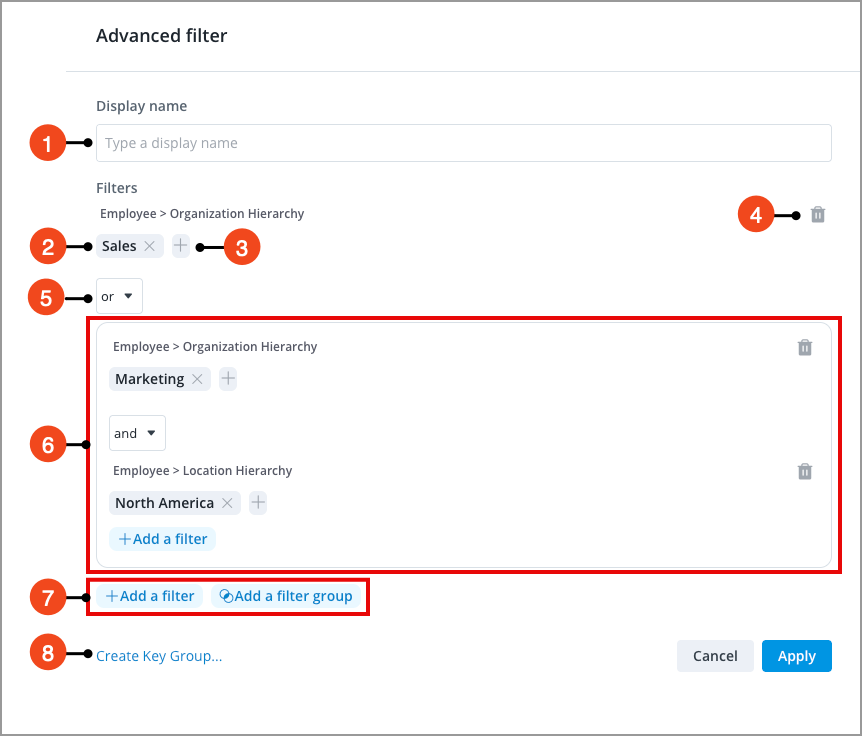
- Display name: The name for the advanced filter which appears as a token once the filter is applied.
- Applied filter: A filter you've added to the advanced filter.
- Add or edit: Add or change values for the filter.
- Remove: Remove the filter.
- Operator: Choose how the filters combine together. The
andoperator requires every filter to be true, while theoroperator requires at least one filter to be true. - Applied filter group: A set of filters evaluated together before combining with the rest of the advanced filter.
- Add a filter and Add a filter group: Add additional filters.
- Create Key Group: Save the advanced filter as a key group for reuse. For more information, see Save an advanced filter.
Add an advanced filter
- On the Analysis Context toolbar, click Add a Filter .
-
Click Add advanced filter to open the Advanced filter dialog.
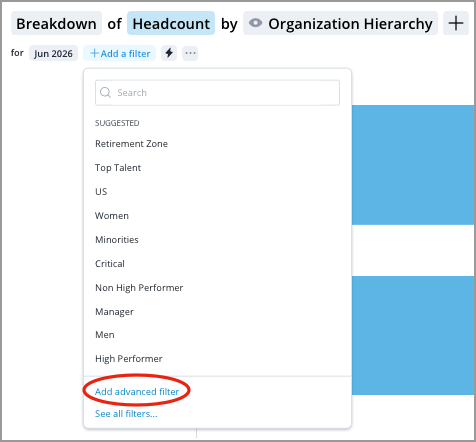
- Type a display name. The display name appears as a token once the filter is applied.
- To add a filter to your advanced filter:
- Click Add a filter.
- Select an attribute, the values you want to include or exclude, and then click Apply. For more information, see Select attributes using the Filter picker.
- To add a filter group to your advanced filter:
- Click Add a filter group.
- Inside the filter group, click Add a filter.
- Select an attribute, the values you want to include or exclude, and then click Apply. For more information, see Select attributes using the Filter picker.
- To add another filter to your group, repeat steps b and c.
Select an operator to determine how your filters are combined. For more information, see Operators.
Note: Filter groups cannot be added inside other filter groups.
- Continue building the advanced filter by adding another filter or filter group.
- After you've added two or more filters or groups, select an operator to determine how your they're combined. For more information, see Operators.
-
When finished, click Apply.
Result: The filter is applied. Applied filters will appear as tokens on the right side of the Time picker.

Save an advanced filter
- In the Advanced filter dialog, click Create Key Group. For more information, see Groups and Key Groups.
- Type a display name and description for the key group.
- Click Save.
To use your key group as a shortcut, see Apply a filter shortcut.
Edit an advanced filter
- Click the filter token.
Depending on the filter, a tooltip displaying the drill path may appear when you click the token. To open the Filter picker and change the selected attribute values, click See all.

Remove an advanced filter
- Click the Remove button on the token.