
Design by Position
Learn how to use the positions view to manage individual positions and edit specific position details.
Access requirements
Permission with these capabilities: Organization Design
Reach out to your administrator for access.
Overview
Positions view is the default view for modeling changes to your organization. Each node in this view represents a specific position. This is where you can manage individual employee assignments, handle position vacancies, and refine the specific attributes of every position in your organization.
To access the positions view:
- Open your org structure in the Organization Design room.
- Select Positions view.
Add positions
- Click a position, then click the Add position button
 .
.Result: A new vacant position is created under the manager.
- Click the new position.
- In the Position details panel, you can edit the details of the position. For more information, see Edit position details.
Move positions
Move positions by doing one of the following:
- Click and drag a position under a new manager.
- Click a position, then click the Move position button
 and search for the new manager to move them to.
Moving a position with no direct reports will relocate that specific position only. Moving a position with direct reports relocates its entire reporting chain.
Duplicate positions
You can duplicate a position multiple times to quickly build out a new team.
- Click a position, then click the Duplicate position button
 .
.Result: A vacant copy of the position and its attributes (job name, location, cost) is created under the manager.
- Click the duplicated position.
- In the Position details panel, you can edit the details of the position. For more information, see Edit position details.
Tip: You can quickly add an assignee to a vacant position by clicking the position and then clicking the Add employee button  .
.
Remove positions or employees
- Click a position, then click the Remove position button
 or Remove employee button
  .
.Result: The position or employee is moved to the holding area. If you removed an employee, the employee is moved to the holding area, but their position remains on the canvas as a vacancy with its associated costs. Optionally, you can specify the change type in the Position details panel to clarify why the decision was made.
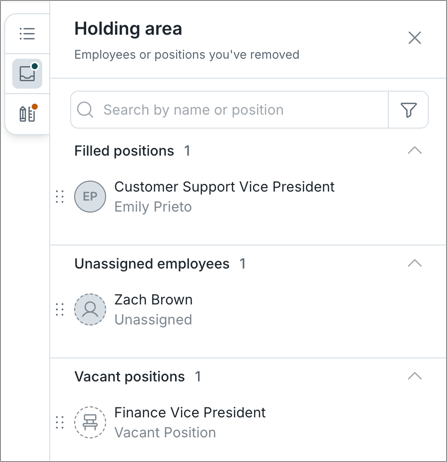
To add them back, click and drag the employee or position from the holding area back into the canvas. You can:
- Drag an employee onto a vacant position to assign them to it.
- Drag an employee onto a filled position to create a new position for them reporting to that position.
- Drag a position (filled or vacant) onto a position to have it report to that position.
Edit position details
-
Click a position to open the Position details panel.
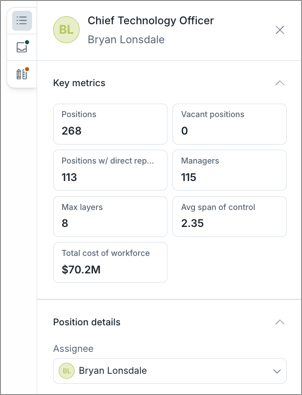
- In the Position details panel, you can:
- Hover over key metrics to compare Scenario, Baseline, and Difference values. Scenario and Baseline compare the current values based on your modeled changes against the original values from when you first created the org structure, while Difference shows the difference between the two. A dash (-) indicates no difference. You can also view a detailed metric breakdown. For more information, see Generate a metric breakdown.
Edit the details of the position such as assignee, job name, location, and budgeted cost.
Tip: Look for purple change indicators on nodes to see which ones you've edited.
- A purple indicator in the corner means the position has been edited.
- A purple dot on the bottom means a direct report has been edited.
When editing an attribute in the position details, you may need to assign an attribute value—such as a new Pay Level or Location—that does not yet exist in your current data. You can create these new values on the fly to keep your structure accurate.
To create a new attribute value:
- In the Position details panel, under Position details, click an attribute value. For example, Pay Level 10.
- Type the name of the new value. For example, Pay Level 12.
- Click Add.
Some attributes, such as Location, require additional steps to ensure they roll up correctly in your location hierarchy. For example, if you want to add Kyoto as a new city, you'll need to provide all the members of the location hierarchy such as the Region, Country, State, City, and Site.
Generate a metric breakdown
Use metric breakdowns to explore the impact of your changes in greater detail.
-
In the Metric summary bar or the Show details panel, hover over a key metric and click Metric breakdown.
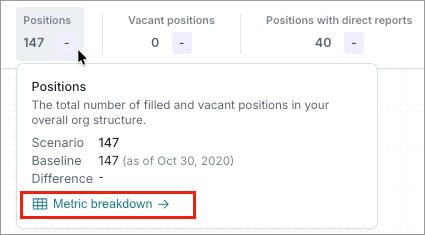
- In the Metric breakdown dialog, configure the following:
- Metric: Select the metric you want to analyze. For example, Total Cost of Workforce.
- Grouping: Select a primary grouping. For example, Job Name.
- Optional: Sub-grouping: Select a secondary grouping. For example, Location.
- Click Generate.
Hide employees
Click the Hide employees button  to remove employee names from the canvas. This allows for unbiased structural planning by focusing on positions rather than individuals.
Organization Design is built on a position-based data model, which means that you can create, move, or delete positions independently of the employees who fill them. When you are finished modeling and ready to export, the export captures the changes made to these positions, ensuring your organization structure remains accurate regardless of individual staffing changes.
Focus on position
To focus on specific positions within an org structure, do one of the following:
- Double-click a node.
- Click the Focus on node button
 .
.
Result: Direct reports will be brought up horizontally for a clearer view.
To leave focus mode, click the job name above the node.
Customize nodes
You can customize the appearance of nodes to display the information most relevant to your goals. Examples of data you can include on nodes are key metrics, employee and position details, and more. Node sizes can also be adjusted if content is cut off.
To customize nodes:
- Click the Settings button
 .
. - Select the metrics or properties you want to display. You can select up to 5 attributes to display on a node.
- Click the Back button
 to return to the org structure.
Design principles
An administrator can Create a Design Principle to set up organizational rules that help you design your org structure. If your administrator has set up design principles, you will see any issues within your org structure that violate those principles in the Design principles panel  . Use the toggles next to the issues to highlight exactly where the problems are, making it easy to identify and fix issues at a glance.
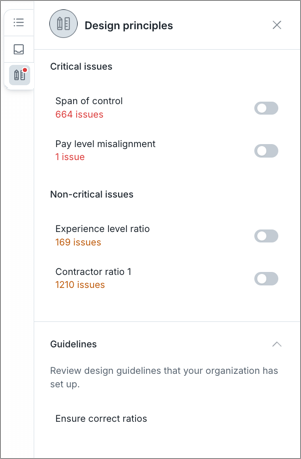
To review a design principle issue:
- Turn on the toggle next to the design principle to highlight exactly where the problems are.
-
Hover over the affected node to see more details on the issue.
Tip: Look for red and orange nodes for issues.
-
A red dot indicates a critical issue within the branch.
-
A orange dot indicates a non-critical issue within the branch.
-
-
Click on the node dropdown to locate the nodes being affected by the issue.
-
In the Design principles panel, hover over the design principle and click the View principle's details button
 to view the principle details.
 -
In the Who's affected list, hover over a position and click the View in org chart button
 to jump to that position in the canvas.
Create a custom check
Custom checks help you validate your org structure without affecting other users.
-
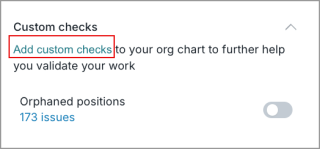
In the Design principles panel, click on Add custom checks.
-
In the Select category dialog, select a custom check.
- Click Next.
- In the Custom check dialog, fill in the details such as name and rule.
- Click Add.
- Turn on the toggle next to the custom check to highlight exactly where the problems are.
-
Hover over the affected node to see more details on the issue.
Tip: Look for blue nodes for custom check issues. A blue dot indicates a custom check issue within the branch.
- Click on the node dropdown to locate the nodes being affected by the issue.
- In the Design principles panel, hover over your custom check and click on the View custom check's details button to view the custom check details.
- In the Who's affected list, hover over a position and click the View in org chart button to jump to that position in the canvas.