

Preview Mapping Records
Preview and validate the values in a mapping before running a job.
Access requirements
Profiles: Data Engineer
Custom profile with these capabilities: Data (Write, Detailed) and Internal Debugging
Reach out to your administrator for access.
Overview
After mapping properties to columns or formulas and optionally applying a record filter, you can preview the records in the mapping. You can access record previews in the following ways:
- To preview values for the entire mapping, in Record filter, click Enter full screen. In the record filter dialog, the Preview tab shows the record preview. You can filter by all records, records included by the mapping's record filter, or records excluded by the record filter.
- To preview values for a specific property, expand a mapped property and then click Preview.
Note: Mappings whose extraction rule uses lookup can only preview data from some of the most recent files. The results may be incomplete.
Preview the entire mapping
The following screenshot shows the record preview for the entire mapping and, if available, record filter. In this example, the mapping is Employee.
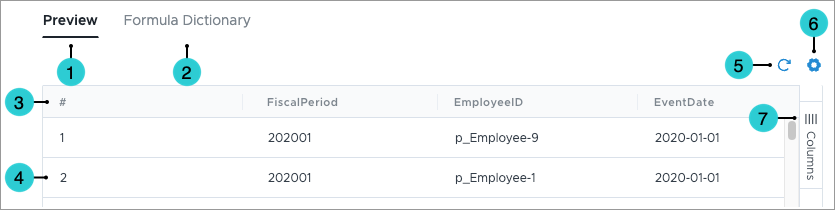
- Preview: Preview mapping records.
- Formula Dictionary: Access functions in the formula dictionary.
- Column: The columns associated with the record values.
- Row: The values associated with a record.
- Refresh: After selecting a different record view, adding a record filter, or changing the unique values setting, click Refresh to update the record preview.
- Settings: Change the file for the mapping, change the record view, or turn on unique values only.
- File: The data file from which to view records.
- Column: If column melting is set, select one of the columns to preview values for.
- Record view: The records to preview. The record views are affected by the record filter. If you select a different record view, always click Refresh to update the record preview.
- Unique values only: Whether the record preview shows all values or only unique values. If enabled, each unique value in the mapping is listed once. If you change the unique values setting, always click Refresh to update the record preview.
- Columns: Select or de-select the columns to include in the preview.
Preview a mapping property
The following screenshot shows the record preview for a specific property. In this example, the property is EventDate.
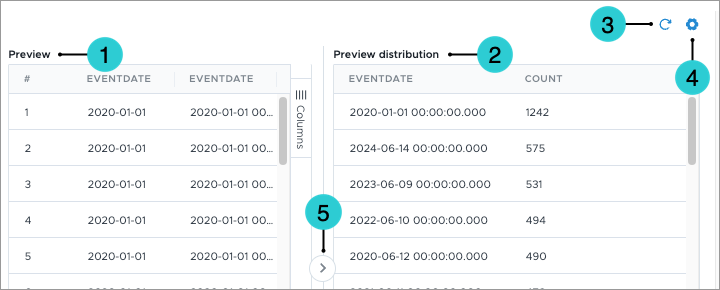
- Preview: A table containing the records in the mapping. The records in the table are affected by the Record view selection, as described next.
- Preview distribution: A table containing the count of each value in the mapping.
- Refresh: After selecting a different record view, adding a record filter, or changing the unique values setting, click Refresh to update the record preview.
- Settings: Change the file for the mapping, change the record view, or turn on unique values only.
- File: The data file from which to view records.
- Column: If column melting is set, select one of the columns to preview values for.
- Record view: The records to preview. The record views are affected by the record filter. If you select a different record view, always click Refresh to update the record preview.
- Unique values only: Whether the record preview shows all values or only unique values. If enabled, each unique value in the mapping is listed once. If you change the unique values setting, always click Refresh to update the record preview.
- Expand/Collapse: Expand or collapse the Preview table.