
Use Studio Agent
Get answers to general questions, best practices, and how-to guidance in Studio, or have Studio Agent plan and make changes to your data model.
Overview
Studio Agent works alongside you in Studio, either as an advisor you consult or as a builder you direct. Ask it a question and it delivers immediate answers and insightful tips precisely when you need them, or hand it a task and it plans, then carries out the corresponding changes to your data model. For more information, see Studio Agent FAQ.
Prerequisites: Your organization must opt in to AI features. In the global workspace, click Settings > AI Features.
Studio Agent has two modes:
-
Advise: Chat and explanations. Studio Agent provides clear, actionable guidance for your workflows, without making any changes to your data model.
-
Build: Chat, plan, and make changes. Studio Agent chats with you to understand what you need, proposes a plan, and then executes that plan directly against your data model in a project in Studio.
Note: Additional Purchase Build mode is available with a subscription to Visier People Extend.
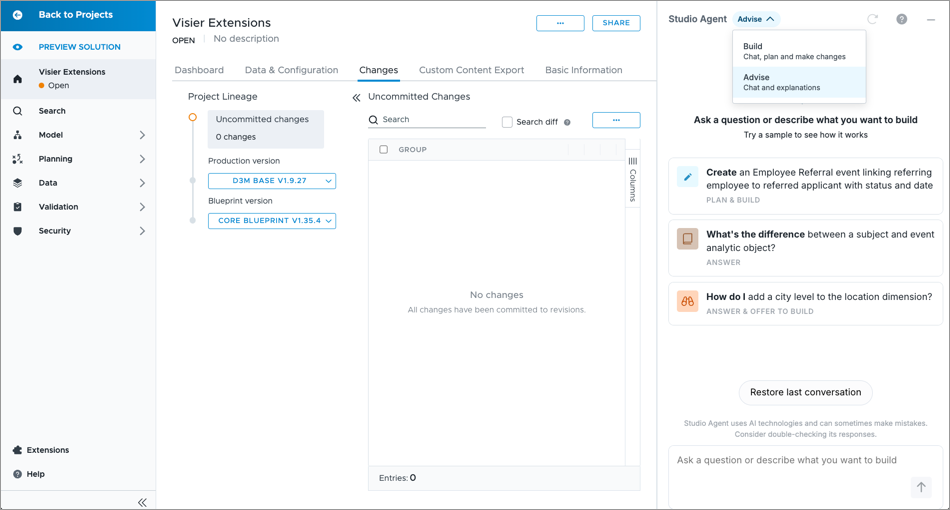
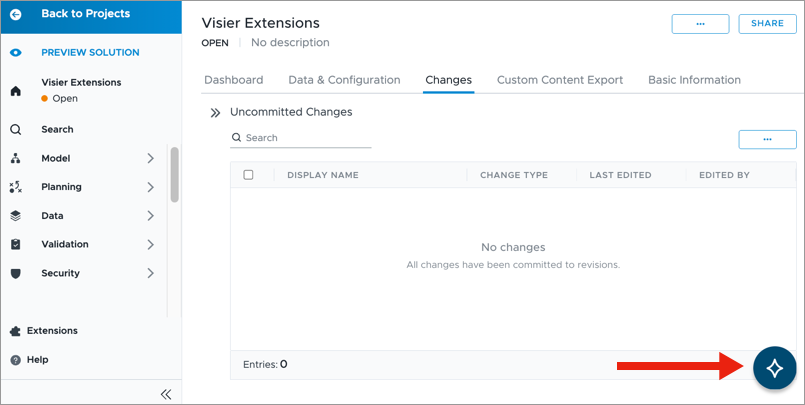
To access Studio Agent, click the Studio Agent icon.
With Studio Agent, you can:
- Ask Studio related questions and receive answers. For more information, see Ask Studio Agent.
- Get an explanation of the formula logic for metrics, concepts, and rules. For more information, see Formula explanations.
- Get guidance during setup, such as Visier Extensions. For more information, see Set Up Visier Extensions.
- In Build mode, plan and make changes to your data model. For more information, see Plan and execute with Studio Agent.
Ask Studio Agent
Use the following workflow as guidance when chatting with Studio Agent.
- Enter a question in plain language.
-
Review the answer.
- If applicable, click the Action button and select a referenced page from the list, for example, Model > Metrics, Studio Agent will navigate you to that location. The visibility of the Action button is based on your user access levels and whether there is relevant content to reference.
-
If the response contains a formula, click the Copy button
 in the upper-right corner of the code block to copy the text to your clipboard.
- Ask a follow-up question. Studio Agent retains your chat history in a single chat session, so you don't need to worry about retyping the whole question from scratch. You can ask multiple questions to delve deeper into a single inquiry.
- Rate the response. Click the Helpful button
 or Wasn't Helpful button
  to provide feedback. If a response wasn't helpful, please include a brief comment explaining what you expected to see. This helps Studio Agent improve future answers.
 -
Manage your conversation. Studio Agent retains context in a single chat session to better understand follow-up questions, maintain continuity, and provide more natural, relevant responses. You can control this by:
-
Starting a new conversation. Click the Reset button
 in the upper-right corner of the screen to clear the current chat. This is recommended when you want to switch to a completely new topic, if the current thread has become too long, or when you want a clean slate.
 -
Resuming your most recent chat session. If you reset the chat or signed out and back in, you can click Restore last conversation at the bottom of the screen to pick up where you left off.
Note: This option will no longer be available once you ask a question in your new chat session.
-
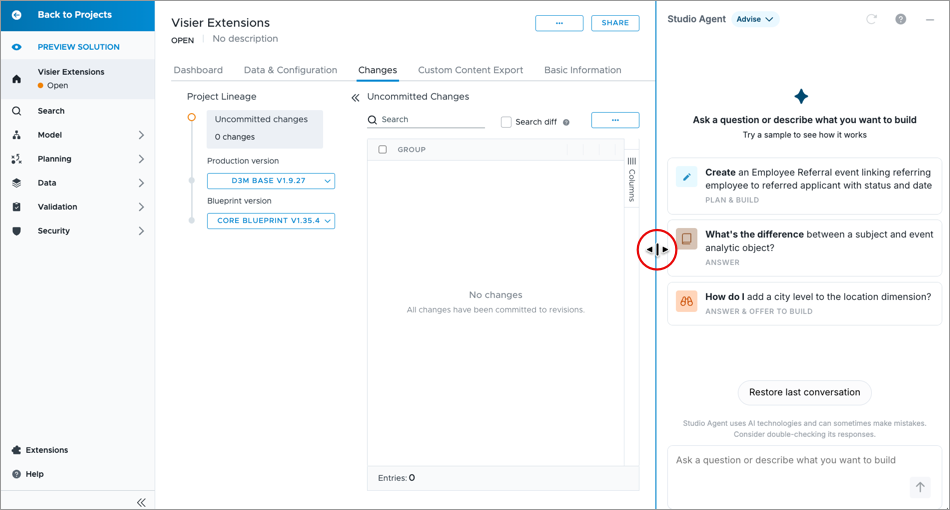
Tip: To resize the Studio Agent panel, click the resize line and drag it to the desired width.
Formula explanations
You can use Studio Agent to help you understand the logic behind formulas for certain objects. If the formula is valid, it explains what it does. If it is invalid, it explains what the errors mean. It's available for metrics, calculated selection concepts, business rules, multi-subject rules, and extraction rules.
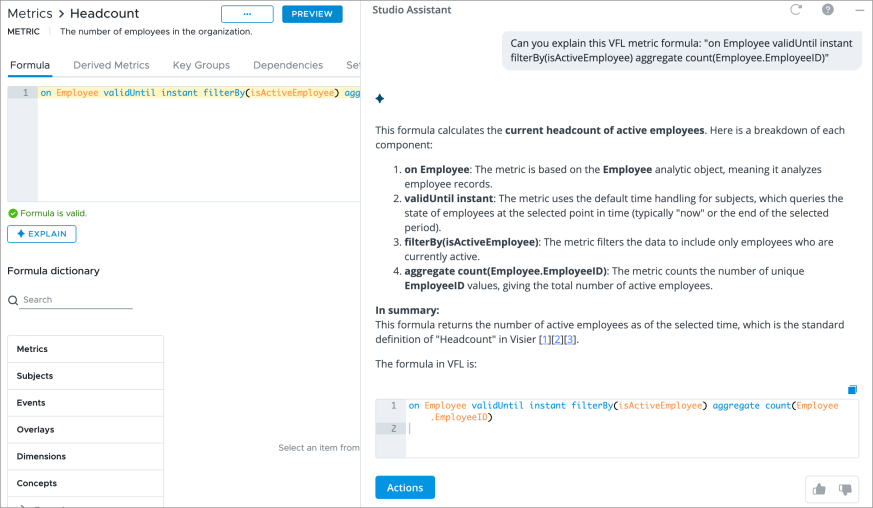
Simply click the Explain button next to a formula.
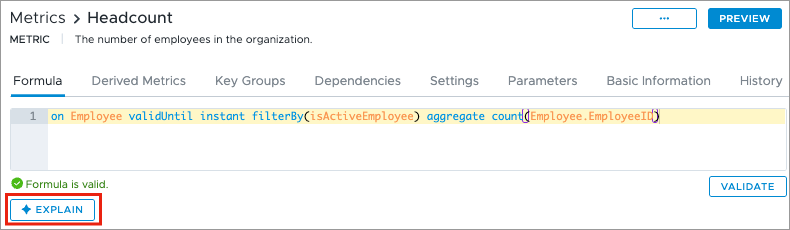
If the formula is valid, this will generate a clear explanation and breakdown of its logic from Studio Agent.
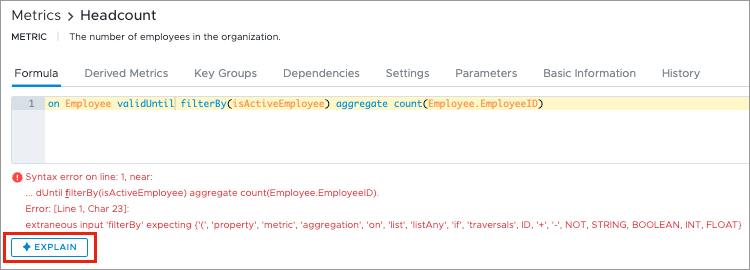
If the formula has a validation error, you can click the Explain button next to the error message.
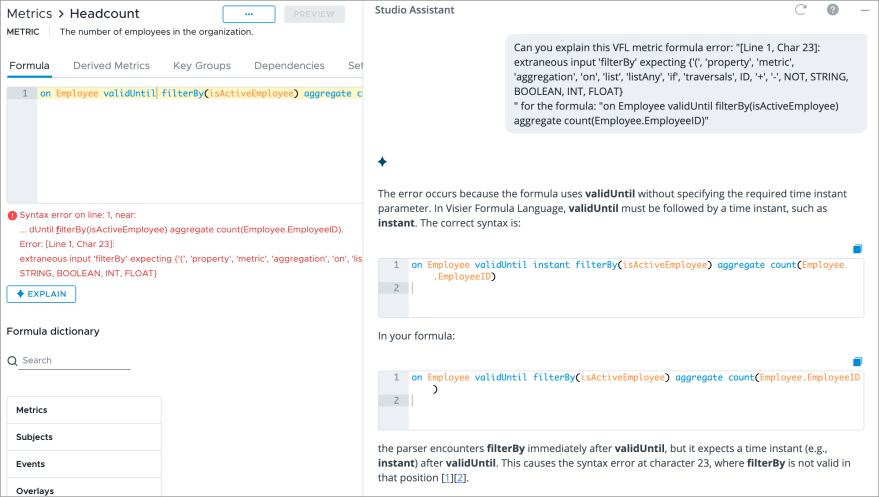
This will generate an explanation of what the error means and provide guidance on how to fix it in your formula. This simplifies the debugging process, helping you resolve issues quickly and efficiently.
Advise mode
Use Advise mode when you want guidance, explanations, or answers. Studio Agent doesn't make changes to your data model on its own in Advise mode. It's useful whether you're exploring an idea, learning Studio, or verifying an approach.
For example, you might ask:
-
"What's the difference between a calculated metric and a calculated selection concept?"
-
"How do I create a calculated metric?"
For tips on interacting with Advise mode, see Ask Studio Agent.
Build mode
Access requirements
Profiles: Advanced Model Developer and Data Engineer
Reach out to your administrator for access.
Use Build mode for everything in Advise mode, plus automated data modeling, from creating a single metric to setting up complex data models.
Build mode provides Studio Agent with the profiles and permissions that are directly matched to your user account. For example, if you don't have Model (Write) access, you can't create metrics and neither can Studio Agent.
Plan and execute with Studio Agent
Use the following workflow as guidance when you're in Build mode.
Note: Build mode's plan-and-execute workflow is only available from inside a project.
-
In a project, click the Studio Agent icon and select Build.
-
Enter your request in plain language, whether it's a broad business goal or a specific instruction. For example:
-
Broad goal: "I want to track referral metrics for my employees. Create the supporting data model."
-
Specific instruction: "Create an Employee Referral event linking referring employee to referred applicant with status and date."
Result: Studio Agent researches and explores your current data model to generate a plan.
-
-
Review the plan Studio Agent proposes, ask follow-up questions, or edit the plan in the chat. Studio Agent will revise the plan based on your prompt.
-
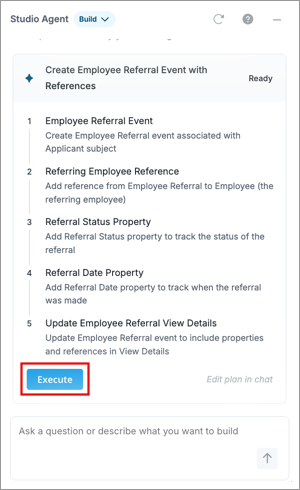
When you're ready to implement the plan, click Execute. Studio Agent starts to build and you can watch each step complete as it happens.
-
Pause the execution workflow at any time. Pausing holds your progress exactly where it is.
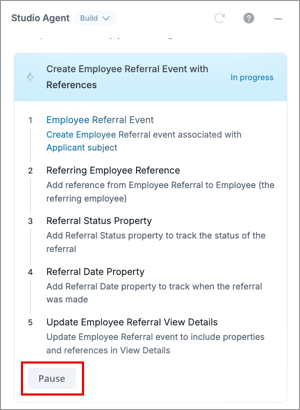
-
If you've paused the execution workflow, resume the workflow in the same project.
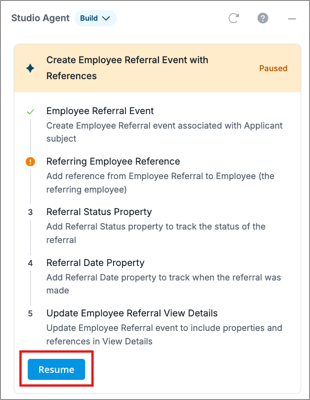
-
Review the items in the Modified in Studio list once the execution workflow completes. Click the links to view the changes in the relevant areas in Studio.
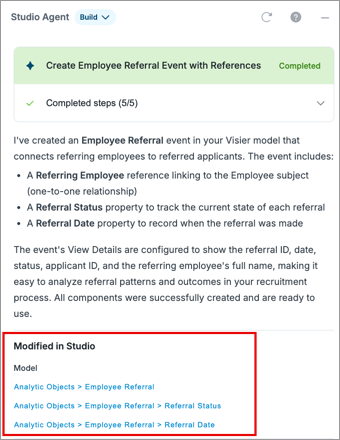
-
Review the changes that have been made by Studio Agent in the Changes tab in the project home. In the Edited By column, the Studio Agent
 icon indicates it was performed by Studio Agent.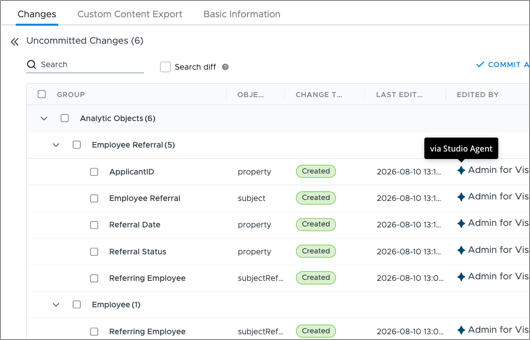
-
When you're ready, publish the project changes to production. For more information, see Publish Project Changes.