

Add a Filter
Access requirements
Permission with these capabilities: Change Analysis Context
Reach out to your administrator for access.
You can add filters in the following ways:
- Select a suggested filter: Choose the filters most relevant to your selected metric. For more information, see Select a suggested filter.
- Search for a filter: Find an attribute, attribute value, or key group by name. For more information, see Search for a filter.
- Select attributes using the Filter picker: Browse every attribute in the full screen Filter picker. For more information, see Select attributes using the Filter picker.
When you add more than one filter, the filters combine with and. The population includes only subject members who match every filter. To combine filters with or, use an advanced filter. For more information, see Add an Advanced Filter.
Select a suggested filter
- On the Analysis Context toolbar, click Add a Filter .
-
In the list of suggestions, click a filter.
Result: The filter is applied. Applied filters will appear as tokens on the right side of the Time picker.

-
To add more filters, repeat steps 1 and 2.
Search for a filter
- On the Analysis Context toolbar, click Add a Filter .
-
In the search box, type the name of an attribute, attribute value, or key group.
Note:
- Search finds complete, partial, and case-insensitive matches in the names of attributes, attribute values, and key groups. If there are no exact matches, partial matches appear in the results.
- Key groups are saved sets of filters you can reuse. For more information, see Create a Key Group.
-
In the search results, click the filter you want to apply.
Result: The filter is applied. Applied filters will appear as tokens on the right side of the Time picker.
- To add more filters, repeat steps 1 to 3.
Select attributes using the Filter picker
- On the Analysis Context toolbar, click Add a Filter .
- Click See all filters to open the Filter picker in full screen.
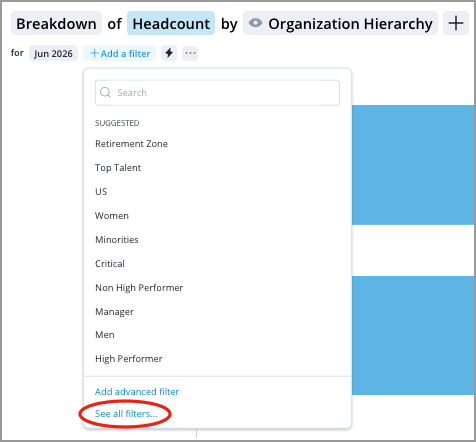
This opens the pickers in full screen, as shown in the following screenshot.
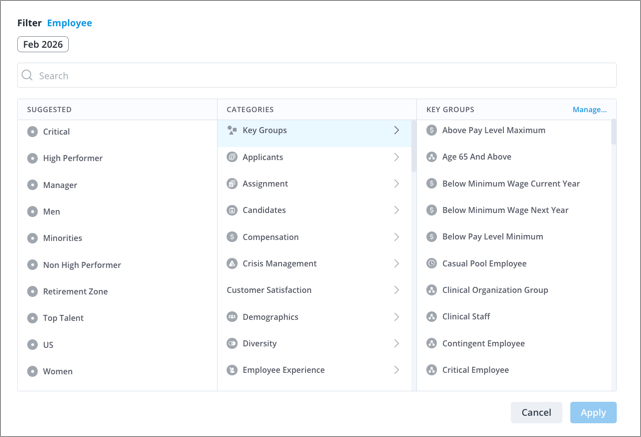
In this view, you can use the following panes to browse and select attributes:
- Suggested pane: A list of the most relevant attributes for the selected item. This pane will not appear if there are no suggestions.
- Categories pane: A list of the attribute categories. Select a category to see the included attributes in the Selection pane which is located on the right side of the picker.
- Selection pane: A list of the attributes in a category and where you choose an attribute. After you select an attribute, you'll be prompted to select the attributes you want to include or exclude.
-
In the Categories pane, click a category to see the attributes in the Selection pane, which is located on the right side of the picker. For example, Organization.
Note: If you don't know the category that an attribute belongs to, scroll to the end of the Categories pane and click All to see the entire list of attributes in the Selection pane.
- In the Selection pane, select the attribute you want to filter on. For example, Location Hierarchy.
-
Select the attribute values you want to include or exclude. For example, North America.
Note: Using the Filter picker in full screen
- Attribute values can be arranged into levels, so you may have to drill through multiple levels to find the value you want to include or exclude.
- Switch between the include and exclude option by clicking the Include/Exclude arrow.

- For more information, see Select the attribute values.
-
When finished, click Apply.
Result: The filter is applied. Applied filters will appear as tokens on the right side of the Time picker.
- To add more filters, repeat steps 1 to 6.
Select the attribute values
After you've selected the attribute you want to filter on, the next step is to select the attribute values to include or exclude.
The following screenshot shows the Filter picker after you've selected an attribute:

- Include/Exclude pane: A list of the values for the selected attribute.
- Selected pane: A list of the filter criteria that details the attribute values that have been included or excluded.
The following screenshot shows some of the key actions that you can perform when selecting attribute values:

- Select All: Click to select all values or clear all selected values. This option isn't available if there are more than 100 attribute values.
- Search: Find a specific value of the selected attribute.
- Include/Exclude toggle: Switch between the include and exclude options. For more information about how exclusion works, see Exclude Attribute Values From Filters.
- Drill up: Navigate to a higher attribute level. This is only available for multi-level attributes.
- Select: Click to select an attribute value. A solid red or blue check box indicates that some attribute values have been selected at a lower level.
- Drill down: Navigate to a lower attribute level. This is only available for multi-level attributes.
- Create a Group: Save the filter criteria as a group that you can use in other filtering workflows. For more information, see Create a Group.
- Remove: Click to remove the selected attribute value.
Save a filter
- To save your analysis context as a key group, on the Analysis Context toolbar, click the More actions button > Create Key Group.

-
In the New Key Group dialog, type a name for the key group and click Save.
To use your key group as a shortcut, see Apply a filter shortcut.
Edit a filter
- Click the filter token.
Depending on the filter, a tooltip displaying the drill path may appear when you click the token. To open the Filter picker and change the selected attribute values, click See all.

Remove a filter
- Click the Remove button on the token.