
Review Object Access to Confirm Visibility
Evaluate security configurations from an object-first perspective to trace user visibility and data exposure.
Access requirements
Custom profiles with one of the following capability sets:
- Security (Read, Simple) and User Management (Read, Simple)
-
Permission Management (Read, Simple)
Reach out to your administrator for access.
Overview
The Object Access (Beta) room allows you to inspect your security model from an object-first perspective. Select a specific metric, dimension, or key group to see who has visibility and which permissions granted it.
Because visibility requires a user to have the correct content package and the appropriate data access for analytic objects and properties, using either the Users (Beta) room or Object Access (Beta) room can help you diagnose why an object is hidden from a user. For more information on the Users (Beta) room, see View User Security to Verify Access.
Use the Object Access (Beta) room to:
-
Confirm who can see sensitive data.
-
View the underlying content and data requirements needed to access each data object.
-
Identify the exact permissions or user groups granting unintended visibility.
View object access details
-
In a project, on the navigation bar, click Security > Object Access (Beta).
-
In the Object Access room, click either the Metrics, Dimensions, or Key Groups tab.
-
In the objects list, find and click the name of the specific object you want to view, for example, the Headcount metric.
-
Select the following tabs to review access details:
-
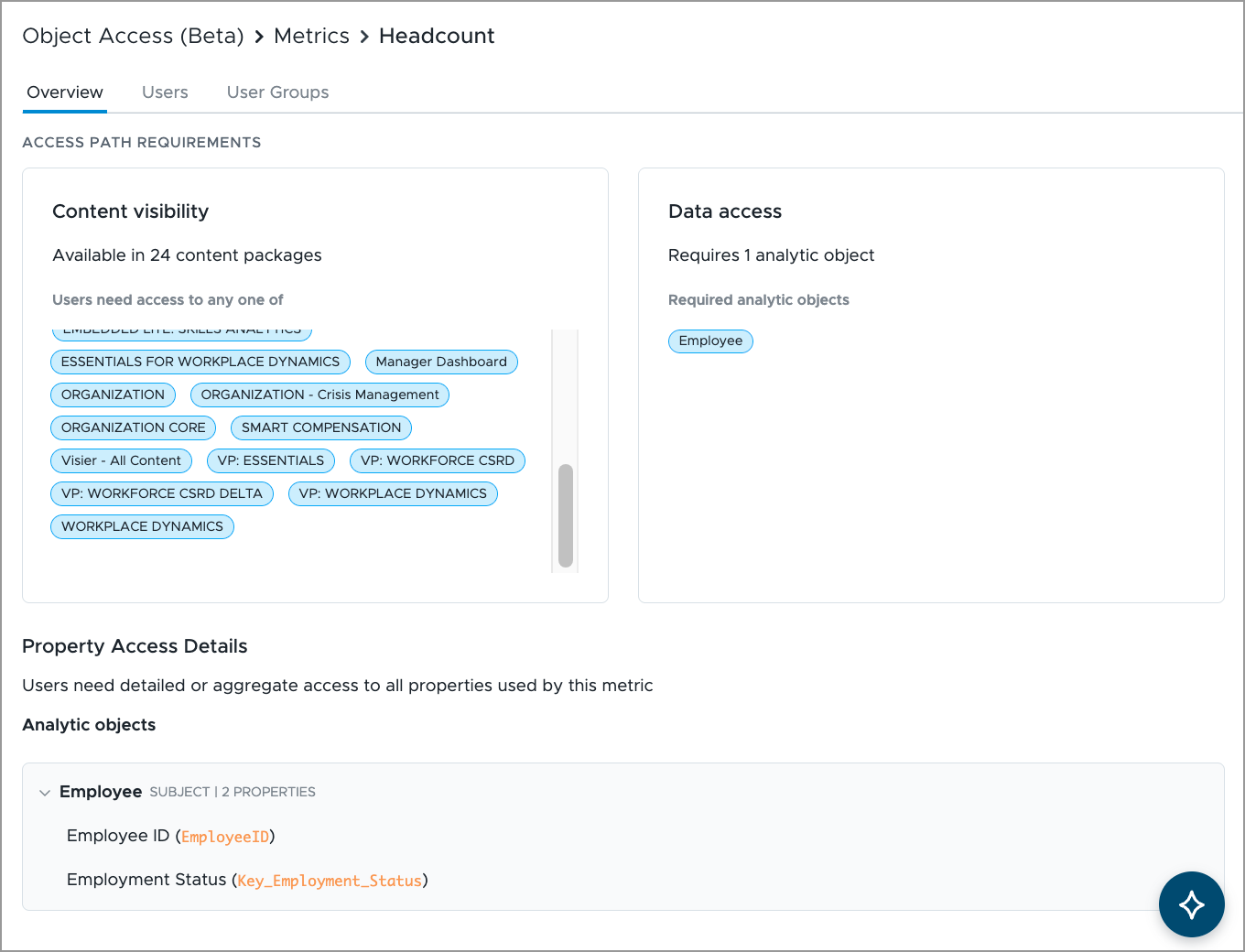
Overview: Displays the access requirements for the object, including content packages, analytic objects, and properties.
-
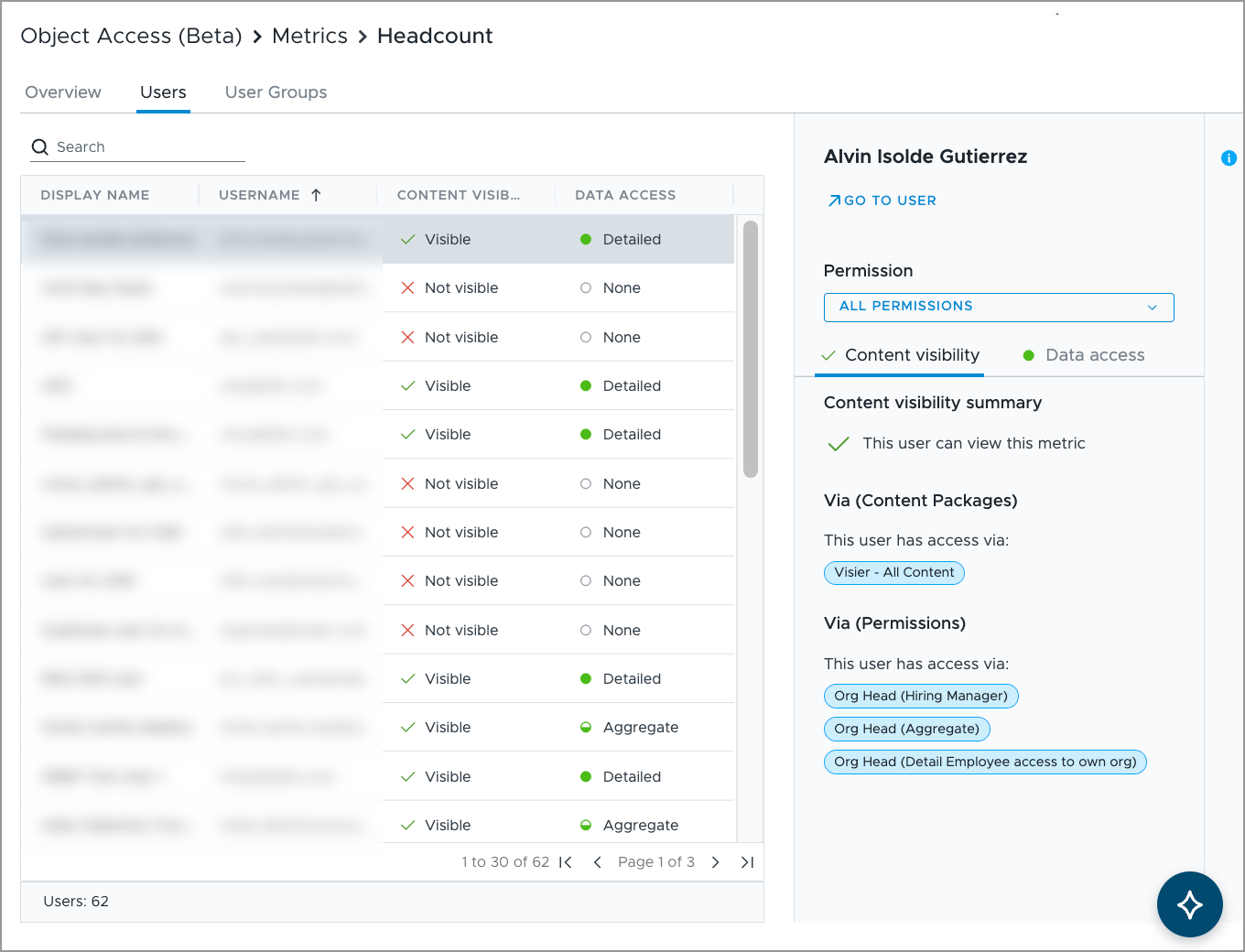
Users: Lists all user accounts. If you click on a user the side panel opens with additional details, such as assigned permissions and the content visibility and data access for the selected object.
Tip: Use the permission dropdown menu in the side panel to navigate to a different assigned permission.
-
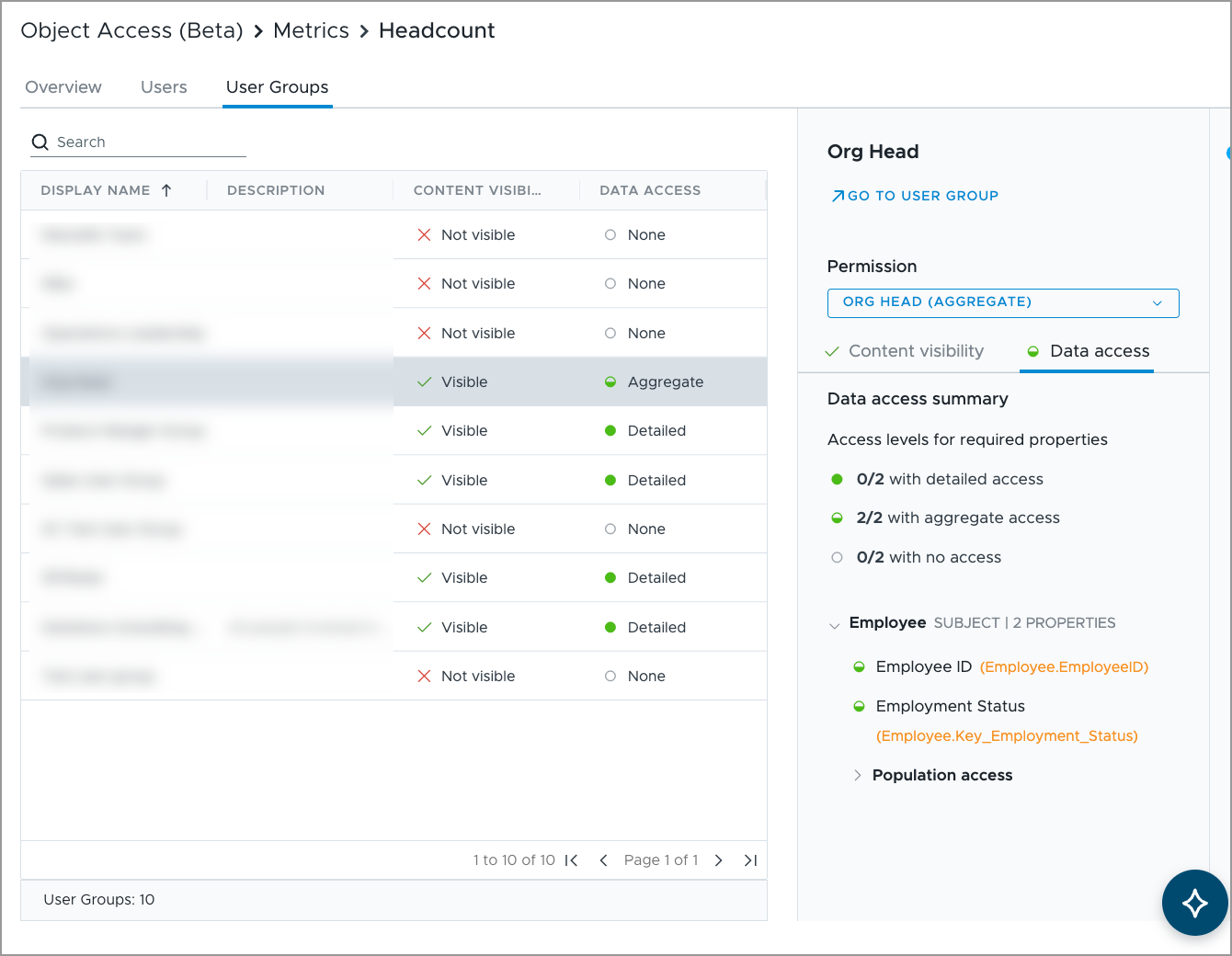
User Groups: Lists all user groups. If you click on a user group the side panel opens with additional details, such as assigned permissions and the content visibility and data access for the selected object.
Tip: Hover over items in the side panel to access additional details.
-
-
Click Object Access in the upper-left of the page to return to the objects list.
Next steps
If your investigation reveals that a user or user group has incorrect visibility, use the following resources to update your security configurations:
-
To update a user group's permissions, see Set the User Group Permissions.
-
To adjust the members in a user group, see Manage the User Group Membership.
-
To update a user’s permissions, see Assign Permissions to a User.