
View User Security to Verify Access
Review a user’s security configuration, including data security, content packages, and capabilities, from a single consolidated view.
Access requirements
Custom profiles with one of the following capability sets:
- Security (Read, Simple) and User Management (Read, Simple)
-
Permission Management (Read, Simple)
Reach out to your administrator for access.
Overview
When working in a project, the Users (Beta) room provides visibility into how security is structured and simplifies how you review and evaluate a user's access. From here, you can drill down to inspect assigned permissions, including the data security, content packages, and analytic capabilities generated through those permissions. You can also view assigned profiles and their associated Studio capabilities.
Use the Users (Beta) room to answer configuration questions, such as:
-
What is granting a user access to a specific metric?
-
Has overlapping permission logic widened a user’s data access?
-
Does the user have access to perform specific actions in Studio or the solution experience?
Caution: The Users (Beta) room provides visibility into how permissions are structured, however it is important to preview a user's access in the solution to confirm their security configuration is generating the expected behavior. For more information, see Preview the Solution as a User.
View user access details
-
In a project, on the navigation bar, click Security > Users (Beta).
-
In the Users list, find and click the name of the user you want to view.
-
Select from the following tabs to review access details:
-
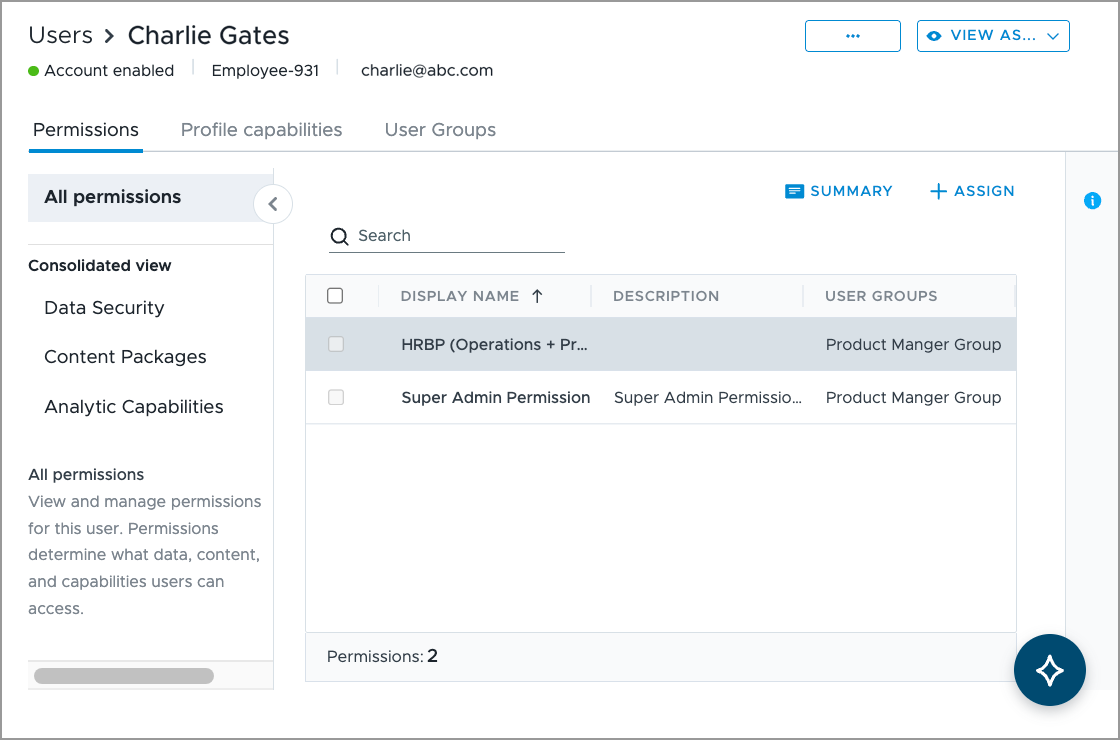
Permissions: Lists all permissions assigned to the user, whether assigned directly or inherited through a user group. Explore a consolidated view of the following:
-
Data Security: The data objects a user can access across assigned permissions, such as analytic objects, and if enabled, sources, data categories, and targets.
-
Content Packages: All content available to the user, such as metrics, dimensions, analyses, and key groups, and indicates the content package and permission that granted it.
-
Analytic Capabilities: The specific capabilities the user has to perform actions in the solution experience.
Tip: Click on an item in Data Security or Content Packages to access additional details in the side panel, such as content visibility, data access, and population access. For more information, see View additional access details.
-
-
Profile Capabilities: Lists assigned profiles, and the actions the user can do in the Studio workspace.
-
User Groups: Lists the user groups the user is assigned to.
-
-
Click Users in the upper-left of the page to return to the users list.
View additional access details
When viewing a user's permissions, use the side panel inside Data Security or Content Packages to investigate the origin of their access and see the level of data access for underlying properties.
Data Security
-
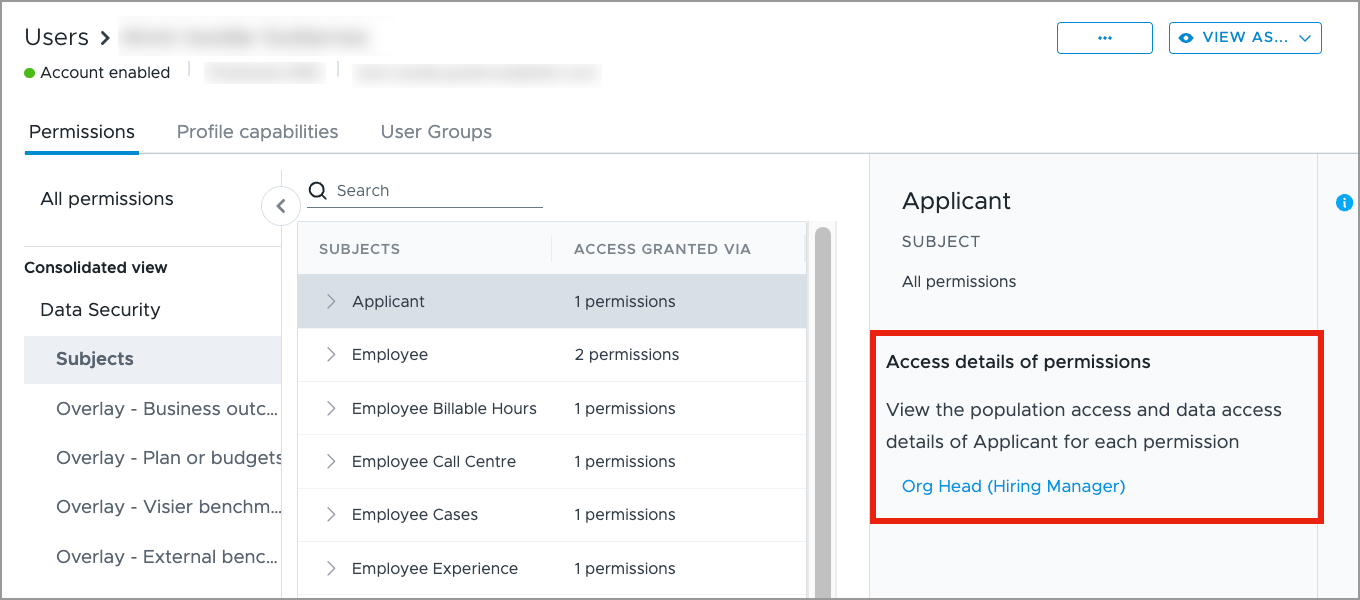
In the Permissions tab, under Consolidated View, click Data Security. and then click on an object type, for example Subjects.
-
In the subjects list, choose how to view details:
-
Click the Expand button
 next to the subject to view the assigned permissions that grant access, along with a quick summary of its population and data access.
 -
Click a subject, such as Applicant to open the side panel.
-
-
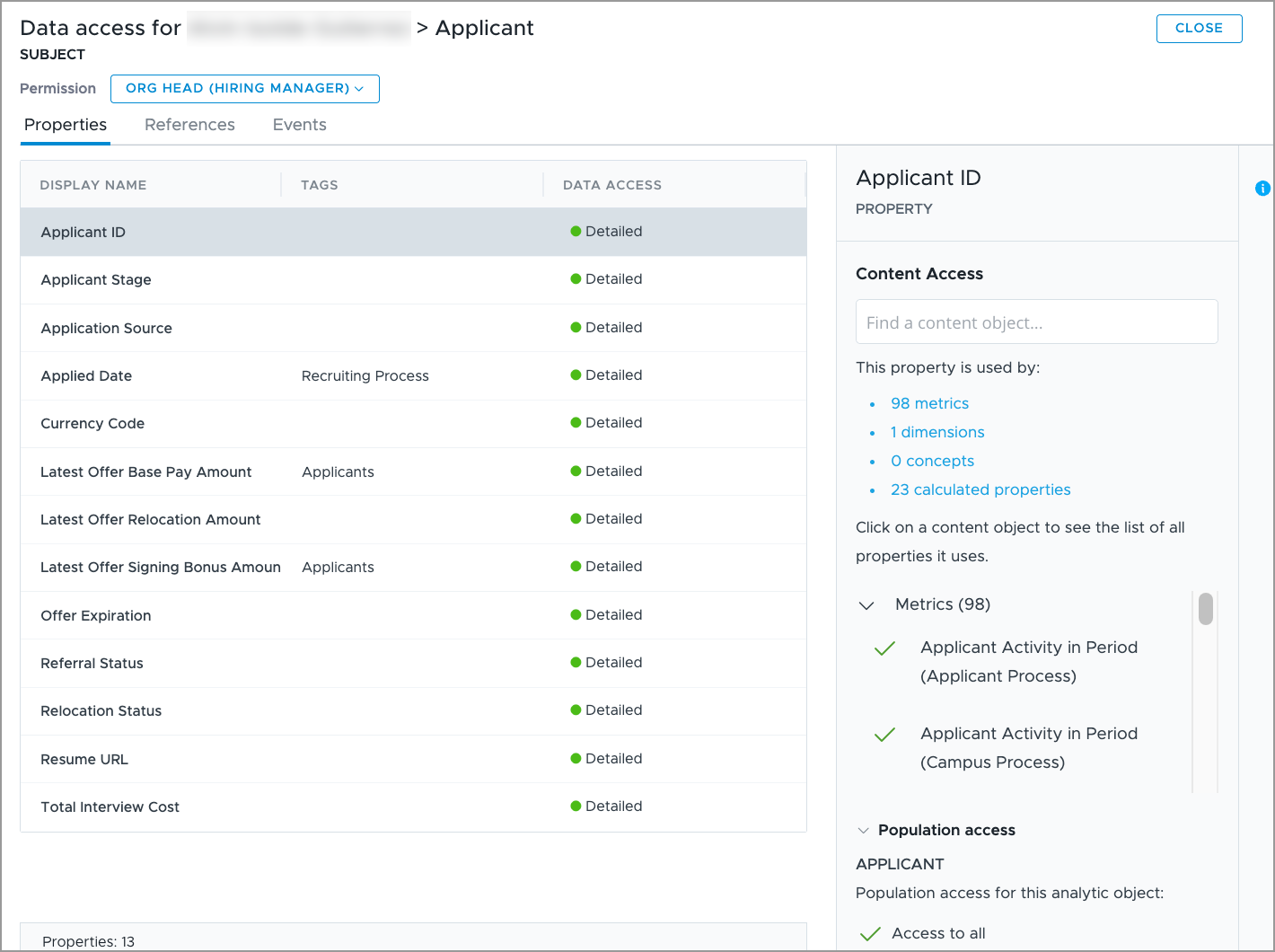
In the side panel, under Access details of permissions, select an assigned permission to view a list of all accessible properties, references, events, and related objects.
-
In the Properties list, select a specific property, such as Applicant ID, to view its population access and content access details, including the exact metrics, dimensions, concepts, and calculated properties that use it.
Tip: Use the permission dropdown menu in the upper-left of the page to navigate between assigned permissions.
Content Packages
-
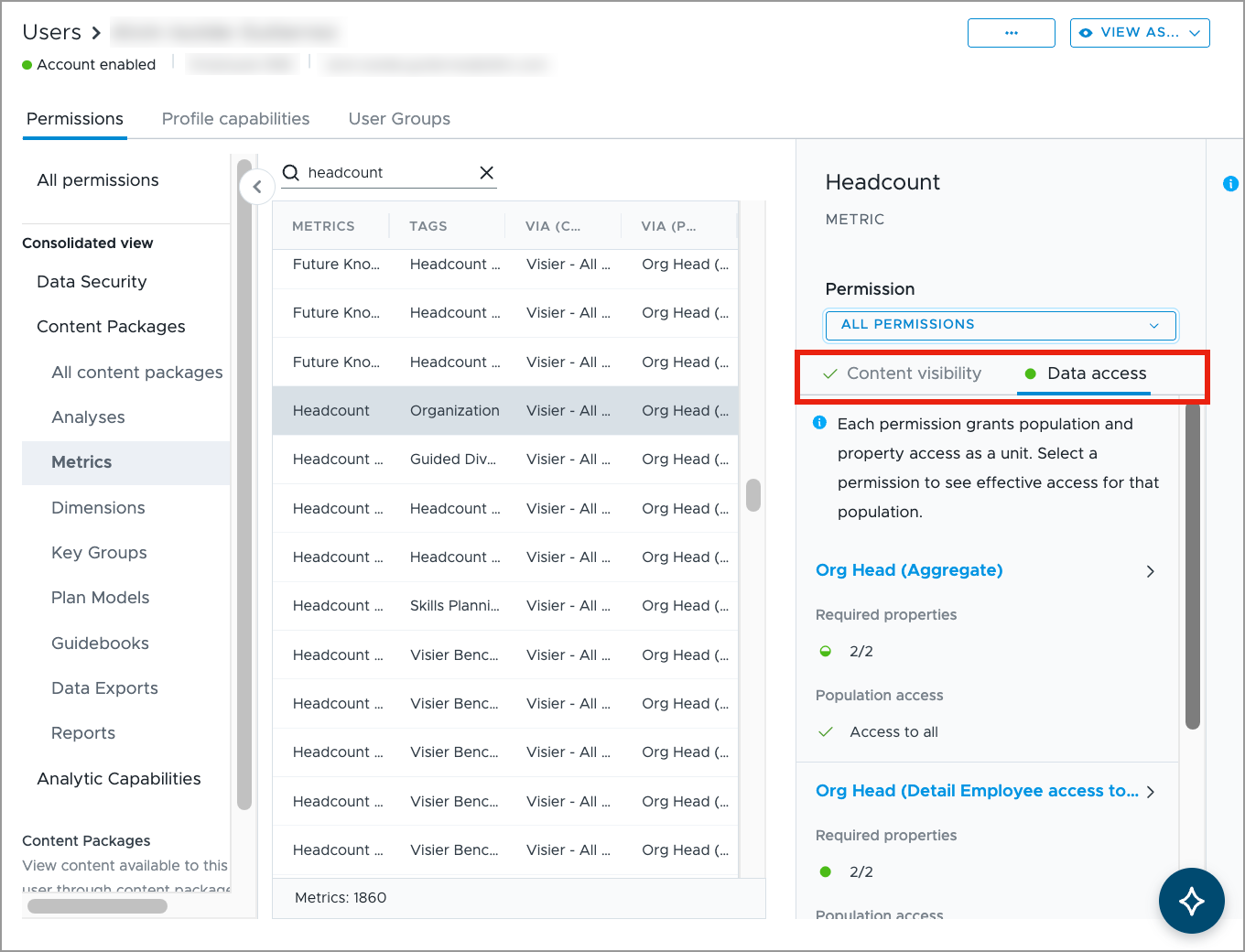
In the Permissions tab, under Consolidated View, click Content Packages, and then click on a content type, for example Metrics.
-
Find and click a metric, such as Headcount, to open the side panel.
-
In the side panel, use the permission dropdown menu to view the content visibility or data access summary for a specific permission.
-
Select the appropriate tab to review details:
-
Content Visibility: Displays which permission or content package granted access.
-
Data Access: Displays the access levels for all required properties and the population access.
Tip: Hover over items in the side panel to view granular access details.
-
Next steps
As a final check, preview the user's access in the solution to confirm their security configuration is generating the expected behavior. For more information, see Preview the Solution as a User.
Depending on the outcome, you may need to modify access:
-
To update a user group's permissions, see Set the User Group Permissions.
-
To adjust the members in a user group, see Manage the User Group Membership.
-
To update a user’s permissions, see Assign Permissions to a User.
-
To manage the profiles assigned to a user, see Studio Profiles.