
Monitor Compensation Allocation
Monitor the status and progress of each compensation allocation task and support task assignees as needed.
Prerequisites
Before you can monitor compensation allocation, you must Assign Compensation Tasks.
Overview
Once managers have started their work, you can monitor the allocation tasks to track progress and analyze their pay decisions. This stage gives you the tools to ensure compensation adjustments align with your organization’s pay philosophy before they are finalized.
During the allocation stage, you can monitor:
- Submission Status: Here, you can monitor the real-time progress of all tasks. As managers submit their work, you'll see the status change to "Ready for Review". You can then click View task to see the task from the manager's perspective, review their choices, and even make adjustments in the Compensation Adjustments table if necessary. For more information on how to make adjustments, see Make compensation adjustments.
- Key Highlights: This section provides a high-level overview of allocation decisions that may be a deviation or outlier from your pay philosophy. It flags decisions that might need a closer look, helping you quickly spot potential issues and ensure fairness. To see the details of a highlighted decision and make a change, click Show details > Open breakdown.
- Pay Decisions: Dive into the data of all submitted tasks. This is where you can sort, filter, and export the data to deeply evaluate managers' decisions. This granular view helps you analyze compensation choices and confirm that the budget is being allocated effectively and fairly across the organization.
Make compensation adjustments
To make compensation adjustments, click View task. This allows you to see the task from the assigned manager's perspective and make changes in the Compensation Adjustments table.
The compensation adjustments table is where you will review your employees’ compensation guidelines and finalize their adjustments. You can select relevant columns within the table to see exactly what you need and directly edit entries.
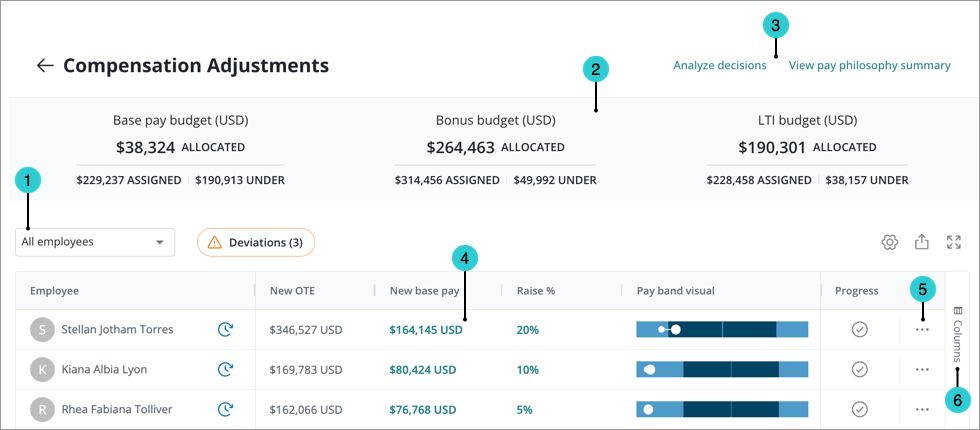
- Group by: Select an attribute to group the table. By default, the table is grouped by job name. Grouping by segment is available when there are employees in a task who belong to multiple segments. Subsequently, you can select which values of a group to display. You can also group by All employees.
- Budget: Here you will find the relevant budgets for the task. When there are employees belonging to multiple segments in a task, a budget segment picker will be displayed. The allocated amount dynamically updates as you make inline changes in the table.
- Header Actions: Run an analysis on the current state of compensation decisions and view pay philosophy guidelines.
- Inline Editing: Double-click on a value in the table to edit it. Special characters, letters, and anything other than numeric input is not accepted in any cells, except for deviations, which can accept (-) for a negative value. Values that would adjust an employee’s new base pay to be less than their current base pay are reset to the previous valid value.
Tip: You can navigate the editable cells in the table with keyboard shortcuts.
- Press the Left, Right, Up, and Down Arrow keys to move around the cells.
- Press the Tab key to move to the next cell in a row.
- Press the Enter key to accept the input and move to the next cell down.
- Press the Esc key to deselect a cell.
- More Actions: View more details about an employee such as their compensation breakdown and adjustments. You can also assign them a promotion if you've included promotions in the cycle.
- Columns: Select the columns to be displayed in the table.
Start review
Once all the allocation tasks are completed, click Start review. This will close manager allocation, managers will not be able to make further changes to their tasks.