

Select a Metric
Use the Metric picker in the visual title to change the selected metric.
Access requirements
Permission with these capabilities: Ad Hoc Analysis
Reach out to your administrator for access.
The Metric picker is what you'll use to navigate and select the metric you want to analyze.
The Metric, Filter, and Group By pickers have two different views.
When selecting these pickers, you'll be initially presented with a menu that contains a search box and list of suggested metrics or attributes, as shown in the following screenshot.
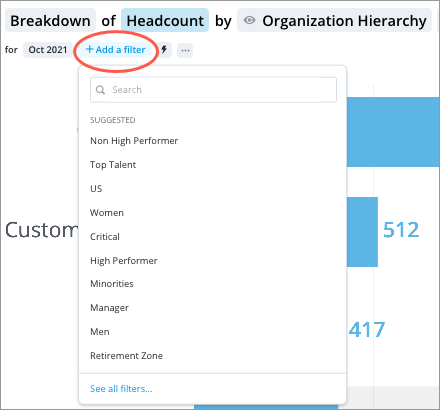
The suggestions are based on the metric or attribute that is currently selected.
You can see a list of recently used items by selecting the search box, as shown in the following screenshot. Only previously selected user created key groups and group by attributes will appear in the list of recently used filters.
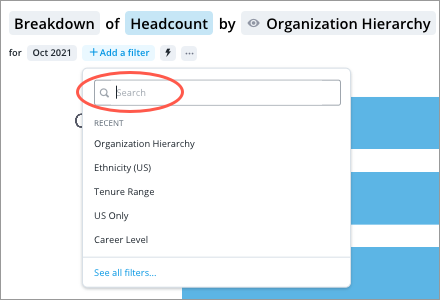
If you want to see the entire list of metrics or attributes that are available to you, click See all at the bottom of the picker.
The following screenshot shows the Metric picker in full screen.
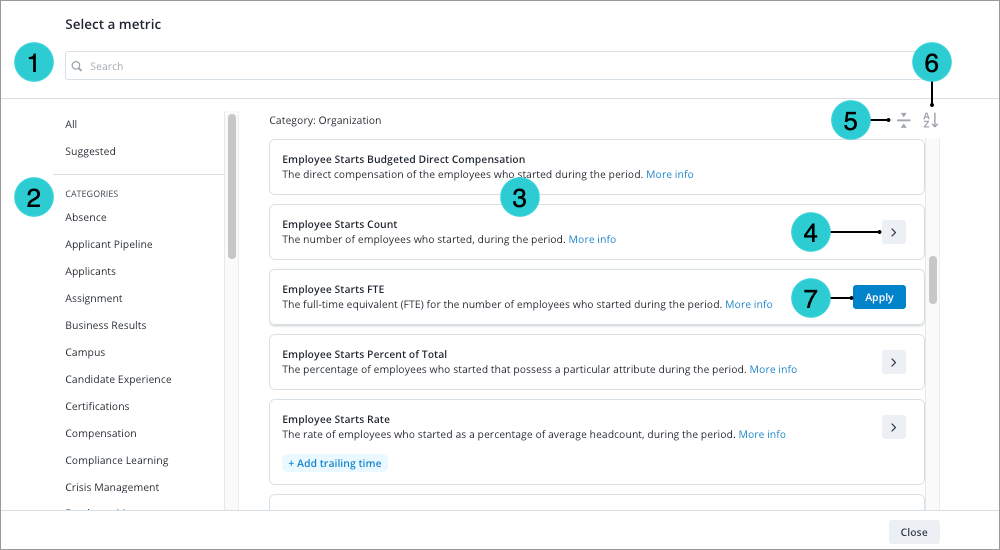
- Search: Quickly find metrics of interest. The solution looks for complete, partial, and case-insensitive matches in the metric names. If no exact matches are found, partial matches will appear in the Metrics pane.
- Categories pane: Select a category to see a list of metrics available for that category.
- Click All to see complete list of available metrics.
- Click Suggested to see a list of related metrics that you should explore for the metric that you've currently selected in the visual title.
- Metrics pane: Select a metric and change how the metric is computed (add trailing time and adjust parameters).
- Drill down: Metrics and models can be organized in a hierarchy. For example, the Total Cost of Workforce metrics have multiple levels. Drill down to view metrics at the next level of the hierarchy.
- Expand/Collapse: Show or hide metric descriptions.
- Sort: Sort metrics alphabetically in ascending or descending order.
- Apply: Hover over the metric and click Apply to select it.
To select a metric:
- In the visual title, click the Metric picker.

- Search for a metric. You can also select a suggested or recently used metric.
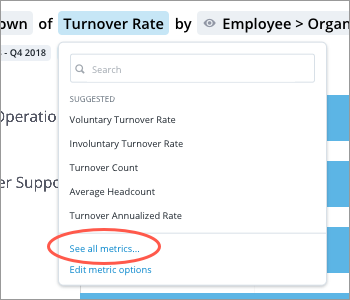
- Optional: To browse all metrics or edit metric options, click See all metrics to open the Metric picker in full screen. For more information, see Change How a Metric is Computed.
Select a plan metric
- With the metric picker in full screen, select the name of the Planning model in the Categories pane.
- In the Metrics pane, click Add metric option for the plan metric you want to analyze.
- Under Metric Options select:
- The plan name.
- The plan scenario.
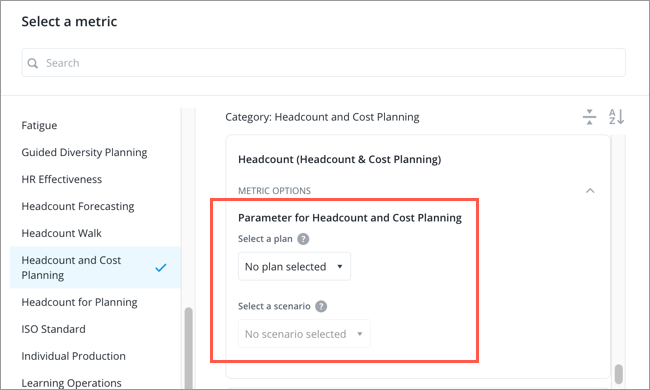
- Click Apply.
Select a skill profile metric
Access requirements
Data required: Permission with access to the following objects:
- Analytic objects: Job, Job Skill, Employee, Employee Skill, and Skill
- Dimensions: Skill Level, Skill Importance, and Skill Name
Reach out to your administrator for access.
- In the visual title, click the Metric picker.
- Search for a metric with the key words Skill Profile in the display name, such as Employee Skill Profile Fit.
-
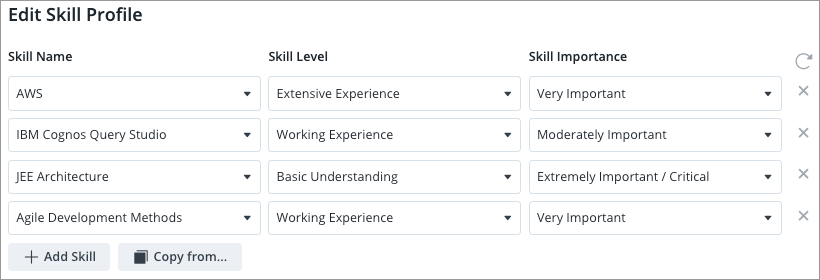
In the Edit Skill Profile dialog, do one of the following:

- To add individual skills, click Add Skill.
-
To copy an existing set of skills from a related subject, such as Employee or Job, click Copy from. For example, you can select an employee to populate the skill profile with that employee’s skills and corresponding skill level.
Result: The skill profile is populated. Add or remove skills from the list if necessary.
Note:
- You can select a maximum of 30 skills. If you choose to copy skills from a related subject, such as Employee or Job, this will populate the list with the first 30 skills available from that source. If you combine individual selection with copied skills, the total limit remains 30. For example, if you select 5 skills and then copy skills from an employee, this will copy the first 25 skills from the employee's list.
-
If you copy skills from an employee or job:
- The list of skills is fixed, it will not automatically update if the employee or job data changes later.
- The list of skills is based on the latest data. The copied list is not dependent on the time period of any chart you are viewing. You cannot copy a historical state of skills from a past period.
- Changing the level and importance of a skill in the skill profile won't affect the data you copied from.
-
Click Apply.