

Save and Reuse Vee Prompts
Save prompts you use often so you can ask them again.
Access requirements
Permission with these capabilities: Vee 2.0 and Vee Core
Reach out to your administrator for access.
Prerequisites: Your organization must opt in to AI features. In the Global Workspace, on the navigation bar, click Settings > AI Features.
Overview
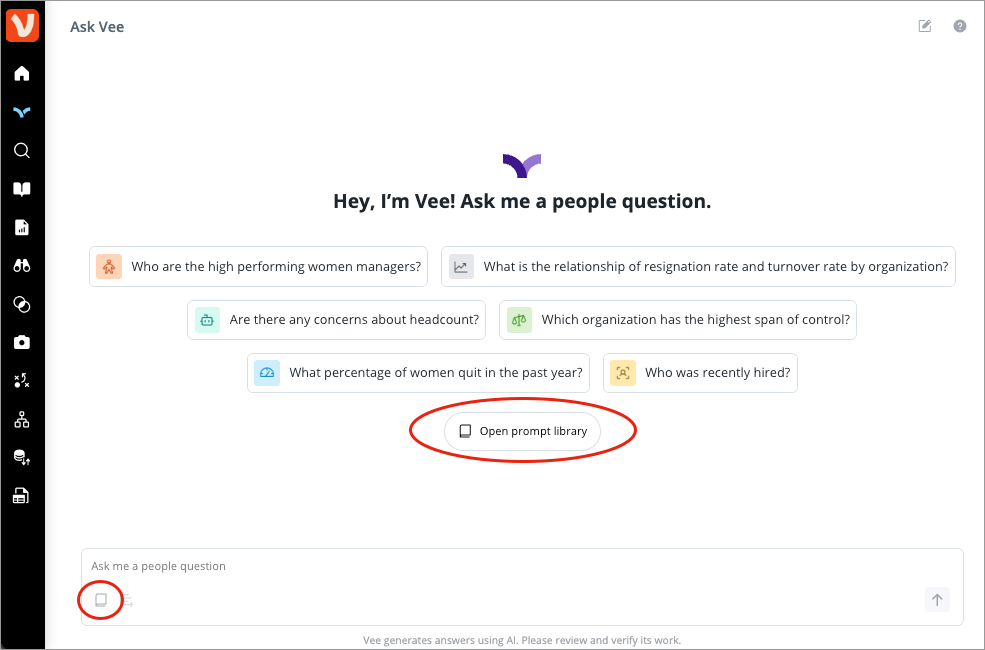
Your prompt library holds your saved prompts and the sample prompts set by your administrator. To access the prompt library in the Vee room, click the Prompt library button or click Open prompt library.
Saved prompts appear in My prompts, sorted by most recent.
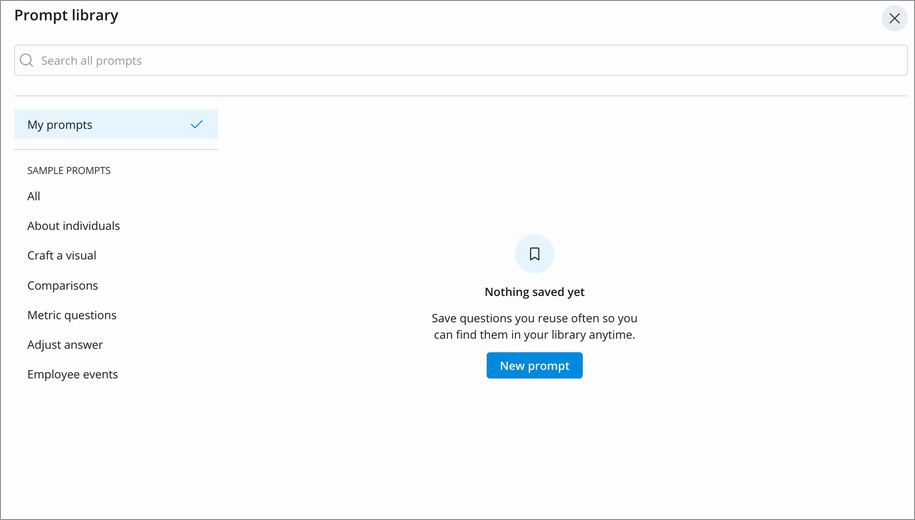
You can:
- Save, edit, and delete your own prompts.
- Ask a saved or sample prompt.
- Search your saved prompts and sample prompts.
Note: Administrators can customize the sample prompts that users see. For more information, see Customize Vee Sample Prompts.
Save a prompt
- In the Vee room, click Open prompt library or the Prompt library button .
- Click My prompts, and then click New prompt.
- In Prompt, type the prompt you want to reuse. Prompts can be up to 5200 characters.
-
Click Save.
Result: The prompt appears in My prompts and on the Vee landing page with the saved prompt icon .
Note:
- You can save a maximum of 50 prompts.
- Saved prompts are only visible to you.
Ask a saved or sample prompt
- To ask a prompt as is, click it on the Vee landing page or in the prompt library.
- To change a prompt before you ask it, in the prompt library, hover over the prompt and click the Copy prompt button . Then, paste it into the chat to edit the text.
Find a prompt
In the prompt library, type in the Search all prompts field. To browse instead, click My prompts, or click a category under Sample prompts.
Edit a saved prompt
- In the prompt library, click My prompts.
- Hover over a prompt and click the Edit prompt button .
- Change the prompt text, and then click Save.
Delete a saved prompt
- In the prompt library, click My prompts.
- Hover over a prompt and click the Delete prompt button .
- In the Delete prompt? dialog, click Delete.
Note: You can't undo deleting a saved prompt.