
Design by Organization
Learn how to use the organizations view to add, remove, move, or edit entire organizations.
Access requirements
Permission with these capabilities: Organization Design
Reach out to your administrator for access.
Overview
Use organizations view to model changes at a high level, focusing on the structure and total costs of entire organizations. This view provides a big-picture look at your organization, allowing you to add, remove, edit, or reorganize the structure as needed. Each node in this view represents a specific organization and displays aggregate values for budgeted cost, total positions, and vacant positions.
To access the organizations view:
- Open your org structure in the Organization Design room.
- Select Organizations view.
Add organizations
- Click an organization, then click the Add organization button
 .
.Result: A new organization is created under the parent organization.
- Click the new organization.
- In the Organization details panel, you can edit the details of the organization. For more information, see Edit organization details.
After adding a new organization, such as Sales or Marketing, you can move on to adding positions for it by switching to positions view. For more information, see Design by Position.
Remove organizations
- Click an organization, then click the Remove organization button
 .
. -
Select one of the following:
- Leave positions without an organization. This will place those positions in the No organization panel
 and the organization in the Holding area
  .
. - Move positions to another organization.
- Leave positions without an organization. This will place those positions in the No organization panel
To add them back, click and drag the organization or position back into the canvas. Drag multiple positions back into an organization by:
- Holding Shift to select a continuous range (click the first and last position).
- Holding Ctrl/Cmd to select specific, individual positions.
Move organizations
Move organizations by doing one of the following:
- Click and drag an organization under a new parent organization.
- Click an organization, then click the Move organization button
 and search for the new parent organization to move it to.
Moving an organization will relocate that specific organization only. Moving a parent organization relocates its entire reporting chain.
Edit organization details
-
Click an organization to open the Organization details panel.
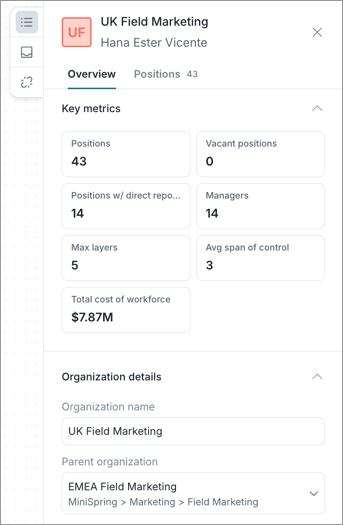
- In the Overview panel, you can:
- Hover over key metrics to compare Scenario, Baseline, and Difference values. Scenario and Baseline compare the current values based on your modeled changes against the original values from when you first created the org structure, while Difference shows the difference between the two. A dash (-) indicates no difference. You can also view a detailed metric breakdown. For more information, see Generate a metric breakdown.
Edit the details of the organization such as name, parent organization, and organization head.
Tip: Look for purple change indicators on nodes to see which ones you've edited:
- A purple indicator in the corner means the organization has been edited.
- A purple dot on the bottom means a sub-organization has been edited.
- In the Positions panel, you can:
- View the positions and employees within the selected organization.
- Select a position and drag it into a new organization.
- Search by employee name or position.
Generate a metric breakdown
Use metric breakdowns to explore the impact of your changes in greater detail.
-
In the Metric summary bar or the Show details panel, hover over a key metric and click Metric breakdown.
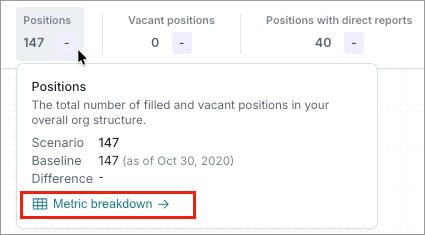
- In the Metric breakdown dialog, configure the following:
- Metric: Select the metric you want to analyze. For example, Total Cost of Workforce.
- Grouping: Select a primary grouping. For example, Job Name.
- Optional: Sub-grouping: Select a secondary grouping. For example, Location.
- Click Generate.
Customize nodes
You can customize the appearance of nodes to display the information most relevant to your goals. Examples of data you can include on nodes are key metrics, employee and position details, and more. Node sizes can also be adjusted if content is cut off.
To customize nodes:
- Click the Settings button
 .
. - Select the metrics or properties you want to display. You can select up to 5 attributes to display on a node.
- Click the Back button
 to return to the org structure.