

Ask Vee
Learn how to start a conversation with Vee.
Prerequisites
Vee's functionality varies based on your organization’s specific configuration. Before asking Vee a question, ensure you've identified which Vee experience you have. For more information, see Determine your Vee experience.
How to access Vee
To access Vee:
- Click Ask Vee on the navigation bar.
- Click the Vee icon.

Note: The Vee icon will appear when:
- Conducting exploratory analysis in the Explore room or full screen.
- Viewing analyses (in the Home, Guidebooks, or Analyses room).
- Vee 2.0 Analyzing attributes side by side in the Compare room.
Ask Vee 2.0
Access requirements
Permission with these capabilities: Vee Core and Vee 2.0
Reach out to your administrator for access.
Prerequisites: Your organization must opt in to AI features. In the global workspace, click Settings > AI Features.
Use the following workflow as guidance when chatting with Vee.
- Enter a question in plain language or click the Sample questions button to explore the types of questions Vee can answer.

-
If Vee needs clarification on an ambiguous term in your question, for example How many SWEs do we have? it will ask you to select the members you intended directly in the chat. This helps Vee understand exactly what you're looking for before it provides a response.
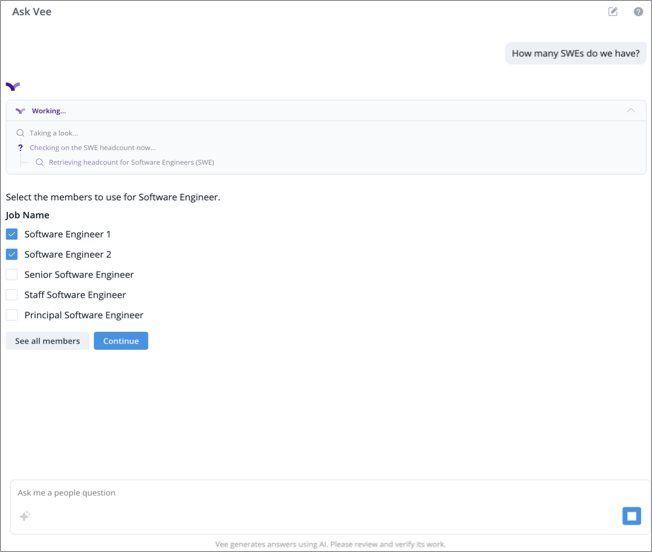
Note: When you clarify a term or explicitly define a term during a chat (such as explaining an organization-specific acronym), Vee remembers that clarification for future conversations. With this personalized memory, you don't need to remind Vee of your specific preferences every time you start a new chat. There may be a brief processing window after you end a conversation before the memory is available in your next conversation. For more information, see Create memories from conversations.
- Review the answer:
- View the visualization that is generated.
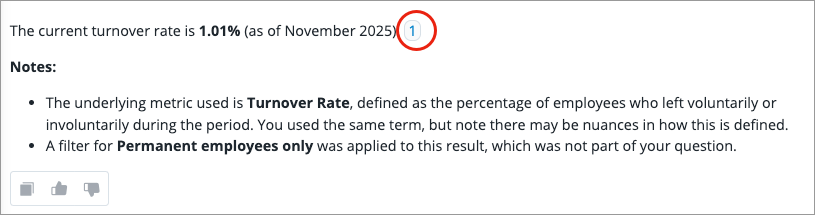
Each insight is supported by citations that reference the underlying data source. In the Vee room, clicking a citation will navigate you to a carousel of visuals you can review or open an object definition. Outside of the Vee room, you can hover over a citation to preview the corresponding visual or object definition, and click the citation to open the visual in full screen.
-
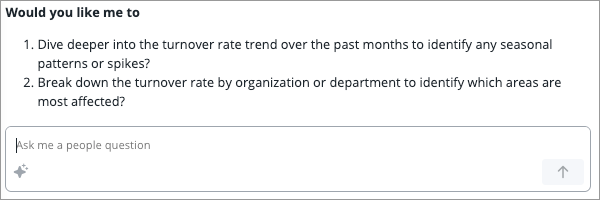
After providing an answer, Vee will prompt you with follow-up actions directly in the chat. You can type the number of the option you want to continue the conversation with or move on to the next step.
-
Ask a follow-up question. Vee retains your current chat history, so you don't need to worry about retyping the whole question from scratch. You can ask multiple questions to delve deeper into a single inquiry.
- Drill down further by entering another question or selecting one of the suggestions. For example: What about last month?
- If the response isn't quite what you are looking for, you can adjust the result by suggesting changes and edits. Vee will refine its response based on the additional information. For example: Group by Organization or I meant Jason K
-
Click the Copy button to quickly save, share, or reuse the explanation.
Note: To copy an explanation, users must have the Copy Button permission capability.
- Provide feedback to the generated response by clicking the Helpful button or Wasn't Helpful button . When providing feedback on a response that wasn't helpful, be sure to write comments that explain why the generated response wasn’t helpful and what you expected to see.
-
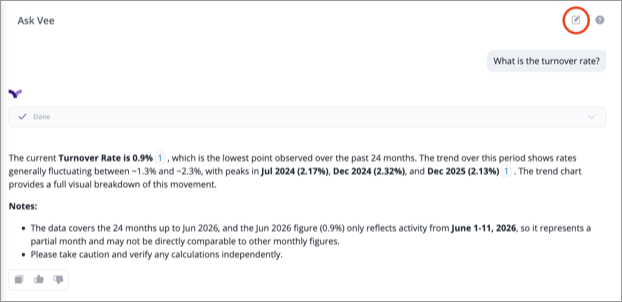
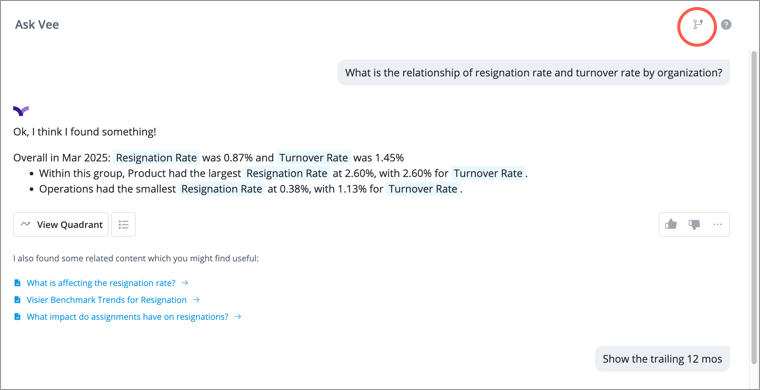
To start a new conversation, click the New topic button in the upper-right corner of the screen. Vee retains context in a conversation to better understand follow-up questions, maintain continuity, and provide more natural, relevant responses. Start a new conversation with Vee when you switch to a completely new and unrelated topic, if the current thread has become too long, or when you want a clean slate.
Ask Vee
Access requirements
Permission with these capabilities: Vee Core
Reach out to your administrator for access.
Use the following workflow as guidance when chatting with Vee.
-
Enter a question in plain language or click the Sample questions button to explore the types of questions Vee can answer.
- Review the answer:
- View the visualization that is generated.
- Inspect the response to see what analytic objects were used in the answer. When inspecting, you can try a different metric, tweak added filters, or replace them with something new.
Hover over a highlighted object to display a menu of alternative selections, allowing you to correct the chosen object if it's not what you are looking for.
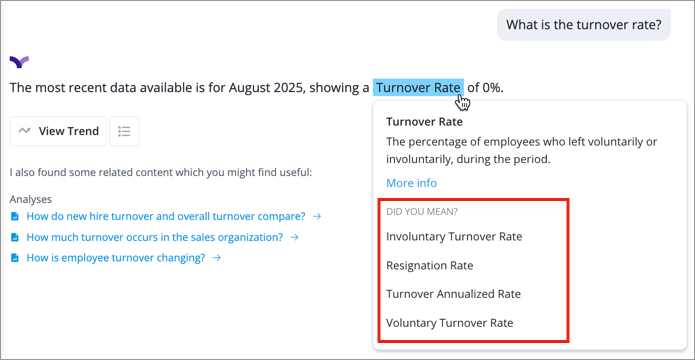
- If Vee needs more context to answer your question, it will pose a clarifying question for you to review and proceed. Vee may suggest alternative questions, metrics, or dimensions.
Note:
To view generated visualizations in a response, users must have the Vee Visualization permission capability.
By default, generated visuals will appear automatically in responses in the Vee room. If you prefer not to see visuals immediately, you can change your user preferences to show a View button instead:
- On the navigation bar, click your User icon > Preferences > Vee.
- In the Vee settings section, turn off the Expand charts in Vee's response automatically toggle.
-
Ask a follow-up question. Vee retains your current chat history, so you don't need to worry about retyping the whole question from scratch. You can ask multiple questions to delve deeper into a single inquiry.
- Drill down further by entering another question or selecting one of the suggestions. For example: What about last month?
- If the response isn't quite what you are looking for, you can adjust the result by suggesting changes and edits. Vee will refine its response based on the additional information. For example: Group by Organization or I meant Jason K
- Provide feedback to the generated response by clicking the Helpful button or Wasn't Helpful button . When providing feedback on a response that wasn't helpful, be sure to write comments that explain why the generated response wasn’t helpful and what you expected to see.
-
To start a new conversation, click the New topic button in the upper-right corner of the screen. Vee retains context in a conversation to better understand follow-up questions, maintain continuity, and provide more natural, relevant responses. Start a new conversation with Vee when you switch to a completely new and unrelated topic, if the current thread has become too long, or when you want a clean slate.
Write effective questions
Generative AI models are powerful but may not always produce perfect output. Effective questions can help guide the model to provide more relevant and accurate responses. Vee offers prebuilt questions for your convenience, but if you seek deeper insights, we recommend following these guidelines:
- Be clear and specific: Clearly state the question you want answered. For example, if you want to know who among the top performers is more likely to leave the company, ask Which high performers have the greatest risk of leaving in the next year? instead of Which employees are showing signs of leaving soon?
- Provide context: Additional context or background information can help narrow the response, especially if it refers to a specific topic or scenario.
- Avoid ambiguous questions: If there's room for multiple interpretations, Vee may not provide the answer you want.
- Ask follow-up questions: To get a more detailed response, you can ask follow-up questions. For example, if you receive a general answer, you can follow up with: Please show me that over time or Filtered to managers only.
- Be mindful of ethical considerations: Ensure that your questions are in line with Visier's Acceptable Use Policy and ethical guidelines.
- Review and filter output: Always review the generated output to ensure it meets your requirements. You can filter, edit, or moderate the content as necessary.
- Experiment and iterate: Don't be afraid to experiment with different questions and phrasing. Vee may respond differently to slight variations in questions. Iterate and refine your questions to get the best results.
- Practice and learn: Writing effective questions will take practice. The more you use Vee and experiment with different questions, the better you'll become at getting the desired results.
- Ask one question at a time: If a question contains two parts, split them into separate questions. For example, instead of asking What is my headcount and how is it changing?, begin with What is my headcount? and then ask a follow-up question How is it changing?
Here are some phrases you can use to craft your questions:
|
Phrases |
Examples |
|---|---|
|
Show me |
Show me headcount |
|
Filter for |
Filter for high performers |
|
By |
|
|
Combine with |
Combine with Compensation Ratio |
|
Remove/Exclude |
|