

Meet Vee
Get to know Vee, your analytics decision partner.
Overview
Finding the answer to your business questions has never been easier with Vee. Vee transforms ambiguous business questions into actionable insights by seeking clarification when needed, providing context beyond raw numbers, explaining the "so what" behind data patterns, and suggesting logical next steps for analysis or action. There's zero learning curve, just use plain English to ask any question and receive tailored insights based on your organization’s people data within Visier.
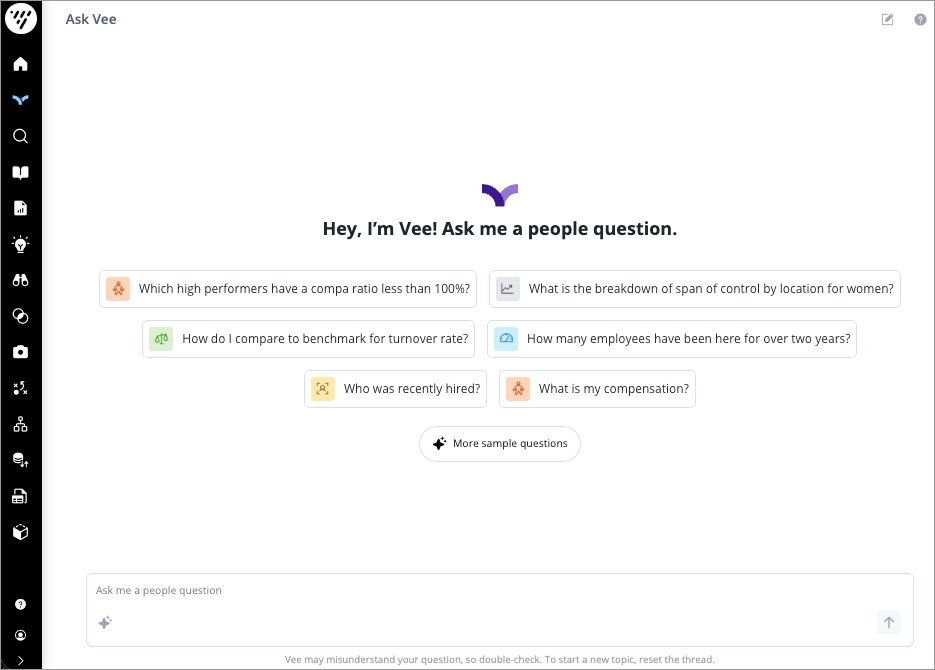
Vee gives you direct access to your organization's people data through a simple conversational interface. This way of interacting with Visier People is designed to help you quickly find answers to your business questions without having to build your own visualizations and conducting your own analysis. For more information, see FAQs About Vee.
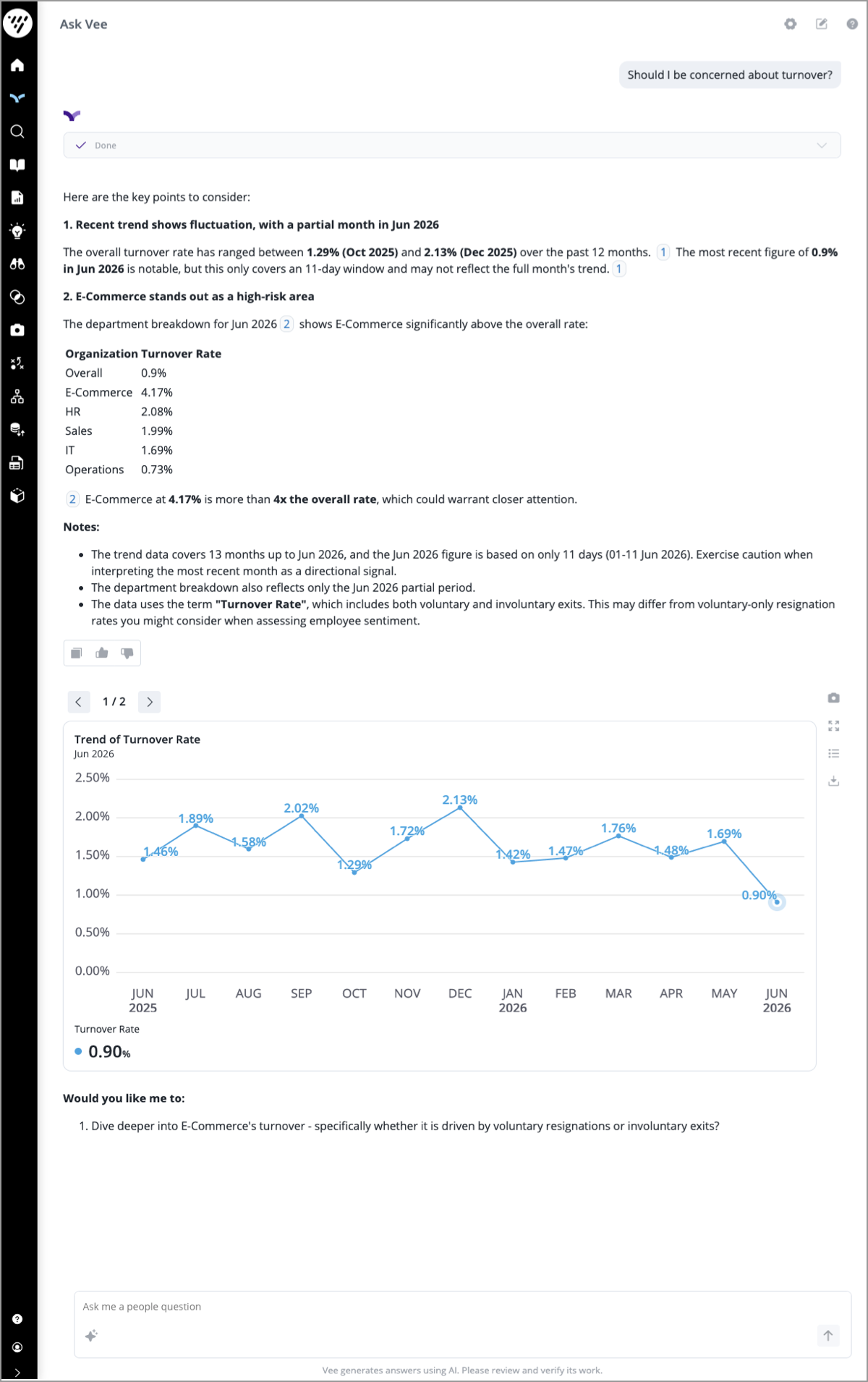
Determine your Vee experience
Vee's functionality varies based on your organization’s specific configuration. You can quickly identify which experience you have by how Vee appears and interacts with you. When chatting with Vee in the Explore room or full screen:
- Vee: Appears in a floating panel and provides responses with a single visual based on your questions.
- Vee 2.0: Appears beside your visuals in a resizable panel. It can explain specific visuals or entire analyses, and you will see progress messages while Vee generates a response. If you're interested, contact your Customer/Partner Success Manager. Visier Case Managers can request access by submitting an Enable a Feature case.
Access to Vee depends on your assigned capabilities. Use the table below to determine the requirements for each experience. Reach out to your administrator for access.
|
Vee Experience |
Permission Capabilities |
Additional Requirements |
|---|---|---|
|
Vee |
Vee Core |
None |
|
Vee 2.0 |
Vee Core and Vee 2.0 |
Your organization must opt in to AI features. In the global workspace, click Settings > AI Features. |
|
Vee 2.0 with chat turned off for AI Explanations |
Vee 2.0 and Vee Boards |
Your organization must opt in to AI features. In the global workspace, click Settings > AI Features. |
If you're an administrator and want to compare the experiences, see Compare Vee Experiences.
Use the table below to compare the functions available in each experience and find the documentation relevant for you:
|
Function |
Vee |
Vee 2.0 |
|---|---|---|
|
Analytical Depth |
Answers individual data queries and provides a single-visual response. |
Performs multi-step reasoning to solve complex questions and can return multiple visuals in a response. For more information, see Vee Architecture, Privacy, and Security. |
|
Contextual Awareness in an Analysis |
Uses the visual you are currently viewing as context. |
Uses all visuals and text displayed in an analysis to provide context-aware responses. For more information, see What Vee Can Do. |
|
AI Explanations |
Provides static AI explanations for analyses. |
Provides AI explanations on visuals and analyses and allows you to ask follow-up questions directly in the chat. For more information, see Explain a visual or analysis. |
|
Personalization |
Provides universal responses to users. |
Tailors the tone and detail of insights to users using instructions and safeguards set by your administrator. For more information, see Customize Vee Instructions and Safeguards. |
|
Data Definitions |
Focuses on metric values. |
Provides definitions of metrics, dimensions, and organizational concepts. For more information, see Vee Sample Questions. |
|
Citations |
Not supported. |
Generates multiple supporting visuals in a single response through citations. You can click any citation to view the underlying visual and verify the data source behind the insight. For more information, see Ask Vee 2.0. |
|
Clarity and Selection |
Requires specific keywords to find members. |
Lets you clarify acronyms and choose between similar members directly in the chat. For more information, see Ask Vee 2.0. |
|
Workforce Plans |
Not supported. |
Connects directly to your workforce plans, allowing you to ask questions about plan metrics and see how plan values compare to actuals. For more information, see Vee Sample Questions. Note: Limited Availability This feature is in limited availability. If you're interested, contact your Customer/Partner Success Manager. Visier Case Managers can request access by submitting an Enable a Feature case. |
How to access Vee
To access Vee:
- Click Ask Vee on the navigation bar.
- Click the Vee icon.
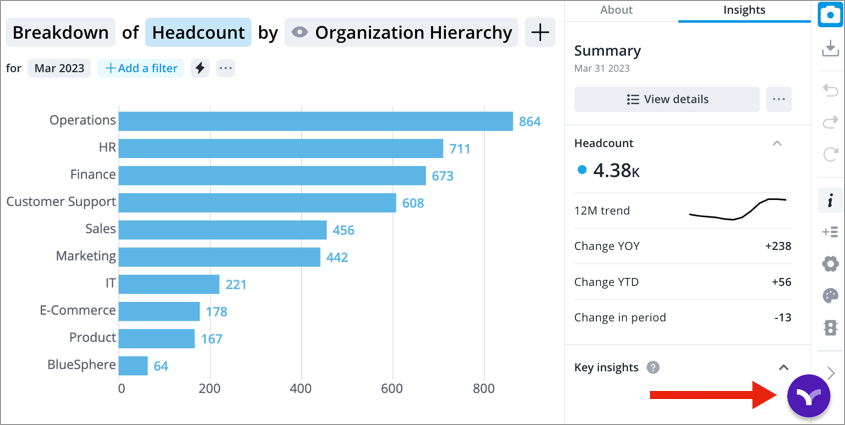
Note: The Vee icon will appear when:
- Conducting exploratory analysis in the Explore room or full screen.
- Viewing analyses (in the Home, Guidebooks, or Analyses room).
- Vee 2.0 Analyzing attributes side by side in the Compare room.
Tip: To embed Vee in your existing digital assistant or application, see Vee API.