

Customize Vee Instructions and Safeguards
Create, remove, or edit instructions and safeguards for Vee.
Access requirements
Custom profile with these capabilities: Model (Write, Simple)
Reach out to your administrator for access.
Overview
Instructions and safeguards allow you to customize how Vee interprets data and interacts with different types of users.
Instructions tell Vee how to frame and prioritize answers for specific user groups. They do not change your underlying data; instead, they change how insights are interpreted, what information is surfaced first, and what actions are recommended.
There are two types of instructions:
- Data gathering: Provides Vee with information about how to gather data. It helps Vee turn natural language questions into the visuals and data that are used to answer the question.
- Response style: Provides Vee with information about how to write text responses to users. It helps Vee communicate according to the organization's guidelines.
Safeguards act as boundaries for conversations. Vee will not provide an answer if a user’s request is blocked by a safeguard. Safeguards can be used to guide user discovery and avoid inappropriate lines of questioning.
Note:
- Instructions and safeguards are not a replacement for data security or content access. Use security, content packages, and the Include with Vee setting to specify what users can access through Vee.
- Visier has guardrails in place to actively protect against prompt injection attacks and harmful content. These are always applied by default, and safeguards work in addition to them. For more information, see AI guardrails.
- AI is non-deterministic, meaning you may see slight variations in responses from Vee even when the same instructions and safeguards are applied.
Best practices
- Instructions and safeguards should be tested and adjusted to ensure the best outcomes. Start with 3 to 5 instructions and safeguards first to test, and gradually add more to see the impact.
- Clear, concise, and specific instructions and safeguards will perform best. Overly complex or conflicting instructions will negatively impact responses.
Workflow
To create instructions and safeguards for Vee in Studio:
- In a project, on the navigation bar, click Model > Vee.
- Make your changes.
- To test your changes, you can preview as a user. For more information, see Preview the Solution as a User.
- When finished, publish your project to production. For instructions, see Publish Project Changes.
Customize safeguards
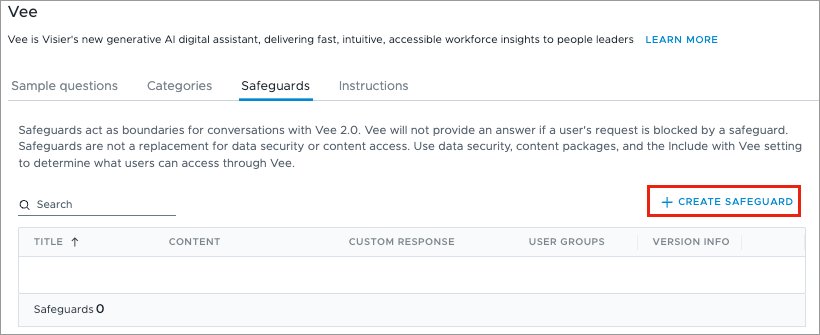
You can create and manage safeguards in the Safeguards tab.
Create a safeguard
You can create up to 50 safeguards.
-
Click Create Safeguard.
-
Add a title and safeguard content.
Note: The maximum title length is 50 characters. The maximum content length is 1000 characters.
-
Optional: Set a custom response that a user will see when the safeguard is triggered. If left empty, Vee will use its default block response.
Note: The maximum custom response length is 500 characters.
- Optional: Select the user groups to apply the safeguard to. If left blank, the safeguard is applied to all users.
- Click Create Safeguard.
Change a safeguard's details
- Select a safeguard in the Safeguards tab.
- Edit the safeguard details in the Info panel.
Delete a safeguard
- In the Safeguards tab, click the More actions button next to the safeguard.
- Click Delete.
Customize instructions
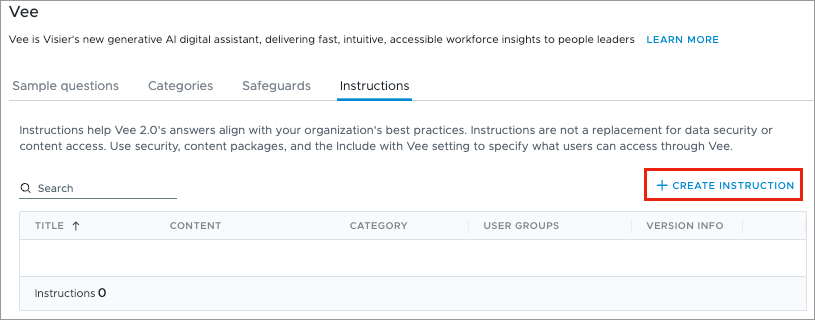
You can create and manage instructions in the Instructions tab.
Create an instruction
You can create up to 50 instructions.
-
Click Create Instruction.
- Select an instruction Category.
-
Add a title and instruction content.
Note: The maximum title length is 50 characters. The maximum content length is 1000 characters.
- Optional: Select the user groups to apply the instruction to. If left blank, the instruction is applied to all users.
- Click Create Instruction.
Change an instruction's details
- Select an instruction in the Instructions tab.
- Edit the instruction details in the Info panel.
Delete an instruction
- In the Instructions tab, click the More actions button next to the instruction.
- Click Delete.
Migrate examples
If you previously created Vee Example analyses to prompt tune Vee, you can migrate them into instructions for Vee 2.0. For more information on Vee Example analyses, see Create an analysis tagged with Vee Examples.
This tool is meant to be used once; running it again may produce instructions that overlap with existing instructions. After the migration, you can create additional instructions as needed. For more information, see Create an instruction.
Note: Generated instructions use AI and can produce unintended results or contain sensitive information, review and edit each one before saving.
- In the Instructions tab, click Migrate Examples.
- Click Continue.
- Review the generated instruction. You can right click View chart > Open Link in Split View to see the original chart next to the generated instruction.
- Edit the title and content. Instructions are visible to other users in Studio, so be careful about including sensitive information.
-
Click Create Instruction to create the instruction, or Next to skip it. Only create instructions that are necessary to improve Vee's responses.
Note: A maximum of 50 instructions can be created. While reviewing generated instructions, use the instruction counter to keep track of how many instructions you are creating.

- Repeat steps 3 to 5 for each generated instruction.
- Once you are finished, click Exit Migration.
Examples
Safeguard examples
Below are some examples of safeguards you can assign to user groups.
- Do not make compensation comparisons between populations from different age groups.
- Do not make any comparisons across race groups.
- Do not provide answers to DEI topics.
- Do not provide answers for questions related to bonus.
Data gathering instruction examples
Below are some examples of data gathering instructions you can assign to user groups.
- When the user asks about turnover, apply trailing 12 months and apply a filter on the KPI Filter concept.
- When the user asks for official headcount, you must apply the Official Headcount Filter concept.
- When the user asks about the organization shape, you must answer with Total Headcount metric grouped by job band.
- When the user asks about HQ or Headquarter, do not apply any location filter.
Response style instruction examples
Response style instructions can be used for role-based personalization. These instructions tailor Vee’s persona to the specific needs of different user groups. Each set of instructions ensures that Vee’s insights are framed in a way that is most relevant to the decisions that specific role needs to make. When creating an instruction for a specific role, you must select the specific user groups you want it to apply to.
These examples highlight the types of response style instructions you can use to personalize Vee's responses for Executives, HR Business Partners, and Sales Executives.
Executive
Use for: CEOs, CHROs, and senior leaders responsible for organizational risk and strategy.
When responding to an Executive, Vee should prioritize high-level impact over granular detail. Instructions you can use for this role include:
- Always open with a verdict: is this a concern, not yet, or not a concern at this time?
- If there is nothing to flag, say so clearly without caveats or secondary signals.
- Summarize at the organizational level only. Do not name specific teams or individuals.
- Frame findings in terms of business impact: operational continuity, cost exposure, or workforce stability.
- State whether an issue is localized or systemic, as this determines urgency.
- Close with one recommendation only: act now, monitor, or no action required.
HR and People Analysts
Use for: HR Business Partners and people analysts who identify trends, diagnose root causes, and support managers.
When responding to this group, Vee should act as a diagnostic partner focused on root causes. Instructions you can use for this role include:
- Identify where the issue is concentrated and name the specific teams, roles, or segments most affected.
- Explain what is driving the issue, not just what the issue is.
- State whether this is isolated to a few areas or a broader pattern across the organization.
- Identify which managers or teams are most likely to need direct support.
- Close with a concrete recommendation: where to intervene, what to investigate, or what to escalate.
- Include relevant data context such as trend direction or comparison to previous periods.
Sales Executives
Use for: Sales Executives and leaders of the Sales function.
When responding to a Sales Executive, Vee should translate people insights into sales performance outcomes. Instructions you can use for this role include:
- Frame every finding in terms of business impact: quota risk, pipeline coverage, territory gaps, or revenue exposure.
- Prioritize signals about top performers and senior sellers, as their stability has the most direct impact on results.
- Make the sales performance link explicit rather than leaving it to the user to connect a people trend to a business outcome.
- If there is nothing material to flag, say so in sales performance terms.
General
Below are some examples of general response style instructions you can assign to user groups.
- Lead with data and key findings.
- Avoid unnecessary preamble or filler.
- Define people analytics terms that are unfamiliar to a general business audience.
- Do not provide any recommendations, only make objective interpretations on the existing data.
- Do not make any forecasts or provide calculations.
Clarification
Below is an example of a response style instruction that tells Vee when to prompt users to make a clarification. This helps to confirm user intent when asking common ambiguous questions.
- When a user asks questions about headcount, clarify with the user which contract type dimension they want to select.