

Customize Vee Sample Questions
Add, remove, or edit the sample questions and categories for Vee.
Access requirements
Custom profile with these capabilities: Model (Write, Simple)
Reach out to your administrator for access.
Overview
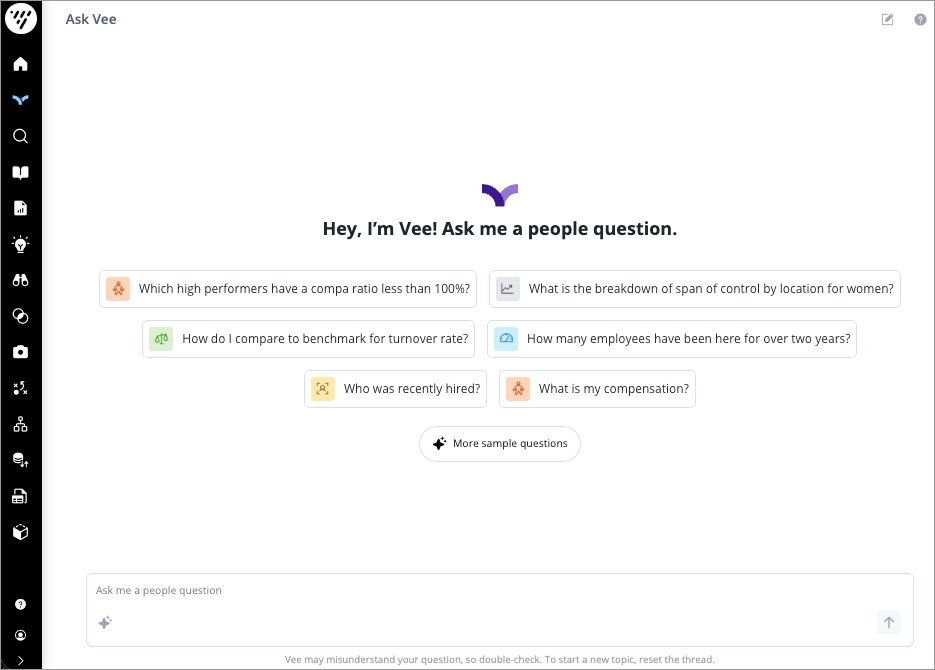
Vee provides a set of sample questions upon entering the conversation interface, allowing users to quickly ask a question. As an administrator, you can customize these sample questions and assign them to user groups so that users see questions that are relevant to them.
You can:
- Add, edit, hide, and delete questions.
- Add user groups to questions.
- Add, edit, and delete question categories.
Workflow
To customize the sample questions and categories in Studio:
- In a project, on the navigation bar, click Model > Vee.
- Make your changes.
- When finished, publish your project to production. For instructions, see Publish Project Changes.
Customize questions
You can create and manage questions in the Sample questions tab.
Note: For existing sample questions, Vee checks that the necessary data exists to answer the question and will only surface them when that data is present. For new or customized questions, Vee does not perform this check. If you customize a question (such as changing the question text, adding a new question, or assigning a user group), you will need to test and validate that Vee returns a response as Vee will not automatically check if the necessary data exists.
Add a question
-
Click Add sample question in the upper-right corner of the Sample questions tab.

- In the Question category page of the New question dialog:
- Select the category the question belongs to.
- Click Next.
- In the Question content page of the New question dialog:
- Enter the question text.
- Show or hide the question using the Visible in Vee toggle.
- Add the question to user groups.
-
When finished, click Create.
Result: The question is added and appears in the Sample questions tab.
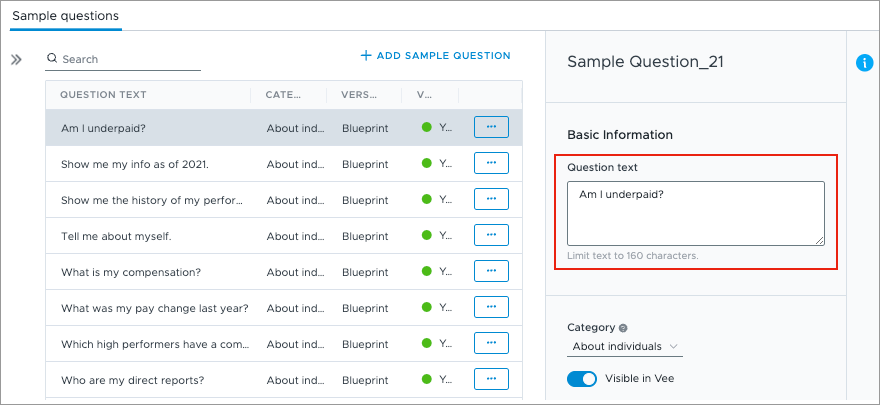
Change the question text
- Select a question in the Sample questions tab.
- Edit the question text in the Info panel.
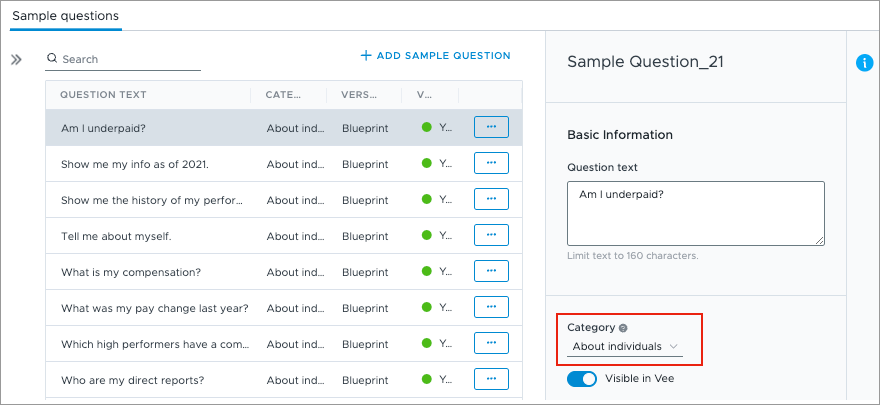
Change the question category
- Select a question in the Sample questions tab.
-
Select the category the question belongs to in the Info panel.
Change the visibility of a question
- Select a question in the Sample questions tab.
- Click the Visible in Vee toggle in the Info panel to show or hide the question.

Delete a question
- In the Sample questions tab, click the More actions button next to the question.

- Click Delete.
Add user groups to questions
To keep sample questions relevant, add user groups to sample questions to show users questions that match their data access and availability. For more information on how to create a user group, see Create a User Group.
Note: User group assignments only control which sample questions users see and in what order. They are not a replacement for data security or content access. Use security, content packages, and the Include with Vee setting to specify what users can access through Vee.
- In a project, on the navigation bar, click Model > Vee.
- Select a question in the Sample questions tab.
-
In the Info panel, do one of the following:
- Vee 2.0: Under Assign to user group(s), click Add.
- Vee: Under Set as default for user groups, click Add.
- Select the user groups you want to add the sample question to.
- Click Confirm.
- Optional: Repeat steps 2-5 to add more sample questions.
How Vee uses these assignments depends on your Vee experience. For more information, see Determine your Vee experience.
User group assignments in Vee 2.0
If you add a user group to a question, only users in that user group see that question. Users see:
- Questions assigned to their user group.
- Questions with no user groups assigned.
Questions assigned to other user groups don’t appear. If users aren’t in any user groups, or their user groups aren’t assigned to any questions, they only see questions with no user groups assigned.
For example:
- Users in the Executives user group are assigned two sample questions. Another question is assigned to the Managers user group. No other questions have user groups assigned. Users in the Executives user group would see every sample question except the one assigned to Managers.
- A user isn’t in any user groups, and three sample questions are assigned to user groups. The user sees every sample question except those three.
User group assignments in Vee
If you add a user group to a question, that question is spotlighted for users in that user group and appear first in the list of sample questions in the conversation interface. The conversation interface displays up to six sample questions at a time. The questions users see depends on how many you assign to their user group:
- More than six questions: Users see six random questions from the assigned questions.
- Six or fewer questions: Users see all the assigned questions first. If you assign fewer than six, other sample questions randomly fill the remaining spots.
Assigning user groups doesn’t hide any questions. Users can still see all sample questions, including questions assigned to other user groups, by clicking More sample questions.
Customize categories
You can create and manage categories in the Categories tab.
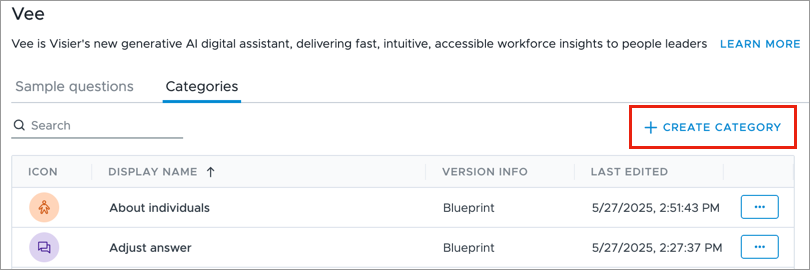
Create a category
- Click Create category in the upper-right corner of the Categories tab.
- In the Info panel, type a display name and description.
- Optional: To assign a background color to the category icon, in the Background color field, type a hex code or select a color.
- Optional: To upload an icon for the category, in the Image field, click Upload. The icon will be visible in the Vee conversation interface.
Note: You can add a JPG or PNG image. Images must be smaller than 5 MB.
Change a category's details
- Select a category in the Categories tab.
- Modify the category's details, such as the display name or icon.
Delete a category
- In the Categories tab, click the More actions button next to the category.
- Click Delete.